Problem: Users on my wifi network can't click on ad links in Google Search results because those links redirect to the ad.doubleclick.net domain, which is blocked by my Pi-hole. The user ends up on a page with this error message: Unable to connect. An error occurred during a connection to ad.doubleclick.net. This happens on Firefox (as of the time of this post, January 2025) because Google is doing something a little bit sneaky: If you mouse over a hyperlink in a sponsored ad in a set of Google search results, it appears to be a normal hyperlink. However, as soon as you click on that link, Google swaps out the target of that link to be a different one than the one that was displayed -- and that's where the link ends up taking you. (In more technical terms: Google appears to be using JavaScript's onClick event to cancel the navigation to the original href; then replaces the original href with the new href; and then proceeds to navigate to that new destination.)
For example, one of the results when I searched Google just now for "new wireless service" was https://www.verizon.com/plans/unlimited. However, clicking on that link actually navigated me to an URL starting with https://ad.doubleclick.net/searchads/link/click?lid=... . You can actually see the swapped-in hyperlink by using the browser's back button to return to the Google search results page, and mousing over the clicked hyperlink again. You'll see that preview of the destination URL for that same link has now changed! (The same happens if you right-click on the target link, then cancel the right-click context menu, and hover over the link again.) My family members from time to time actually want to click on a sponsored Google search result, and have the navigation work properly. However, I don't want to whitelist the entire "ad.doubleclick.net" domain at my Pi-hole, since that would likely result in a lot more distracting ads being rendered as we use the web. I searched for a Firefox add-on which would prevent hyperlink URL destinations being changed from the preview URL that was shown prior to clicking on them, but couldn't find one that seemed trustworthy. (I do already run EFF's Privacy Badger add-on, which purports to include this particular functionality; but for whatever reason, it isn't working for me in Firefox as of the time of this post. Possibly Google has recently updated the mechanism that they use to perform their URL-swapping in Firefox; and Privacy Badger hasn't yet been correspondingly updated.)
Workaround / SolutionTo my surprise, Google doesn't seem to perform their URL replacement when the search link is activated by the Return key, instead of by a click! Therefore, a crude-but-effective workaround is as follows, when looking at a page of Google search results: - Hit the Tab key until the desired link has the focus.
- (Alternatively, double-click a word of text near the target link to select it; then press Tab and/or Shift-Tab from there until the desired link has the focus.)
- Press Return to activate the link.
This workaround does have the advantage of not needing any browser add-on to work!
When doing this, Google (apparently) doesn't have any JavaScript in place to hijack the link destination; the client browser navigates directly to the actual URL shown in the browser's preview, without being redirected through ad.doubleclick.net (or any other domain).
Firefox is my favorite web browser. It supports proper Ctrl+Tab behavior, it's fast, and it's a leader when it comes to prioritizing the privacy of individual users over the agendas of corporate ad networks.
I also like keeping my work-related stuff and my personal stuff organized into two separate browser programs. A big advantage of that is I can be logged in to my work Google account (for email, calendar, etc.) in the first browser, and my personal Google account in the second browser, and don't ever need to manually switch back and forth between which account is currently active.
(Separate browser programs -- not just browser windows -- is needed for this to work. Separate browser programs, such as Firefox and Chrome, don't share cookie storage with one another, which means that they have completely separate records of your login information for each website.)
As a bonus requirement, I want to be able to tell at a glance whether a given browser window that I've got open in front of me belongs to my "work" or "personal" browser.
Finally, with Firefox being my preferred browser, I'd like to be able to use it for both my work stuff, and my personal stuff. Given that I need to be using two different browser programs in order to keep my work and personal stuff separated, is it impossible?
Enter: Firefox Developer Edition
As you've likely guessed, this all is possible, by installing Firefox Developer Edition!
Firefox Developer Edition is like the standard Firefox browser, but with a few additional programmer-oriented bells and whistles. For most practical purposes, though, it works just like the standard Firefox.
Most importantly for this post's use case, Firefox Developer Edition fully supports being installed, and running, side-by-side with Firefox. The two browsers each have their own separate cookie storage, and so each supports being logged in with a different user account to the same website, such as Google, at the same time.
Firefox and Developer Edition can also be themed (given a custom appearance) separately. I've landed on assigning a simple orange theme to my Firefox, and a simple blue theme to my Firefox developer addition, so telling which browser a given window belongs to is as simple as glancing at the top of the window, and looking at the color.
I'd encourage even non-developers who like Firefox, and are interested in separating out your personal and work stuff into separate browsers, to give this a try. There's nothing "scary" about Firefox Developer Edition; it's easy to just use it as another copy of Firefox.
Depending on who you ask, Google Chrome is the world’s most popular browser here in mid-2012. It’s fast, lightweight, and standards-compliant. However, Chrome has one major (for me) issue that will prevent me from ever using it as my primary browser: The lack of any way to modify the behavior of the Ctrl+Tab keyboard shortcut to switch between tabs. Like the other leading desktop web browsers Firefox and Internet Explorer, the default behavior of the Ctrl+Tab keyboard shortcut in Chrome is to switch between tabs in left-to-right order. I’ve believed for years that this behavior is inefficient at best, and the default switch order for Ctrl+Tab should be most-recently-used (MRU) order. The default left-to-right Ctrl+Tab switch order makes it impossible to quickly use the keyboard to toggle back and forth between two tabs when there are multiple tabs open. Left-to-right order is also inconsistent with the long-established MRU order for the keyboard shortcut for switching between open applications (Alt+Tab in Windows and many Linux distributions; Command+Tab in OSX). Unlike Firefox and Internet Explorer, however, Chrome offers no way to change the default Ctrl+Tab behavior, even via add-ons / extensions. To compare the three leading desktop browsers: - Firefox: Has an excellent addon called LastTab which has a great implementation of MRU Ctrl+Tab behavior (including an Alt+Tab-like preview window of the tabs arranged in MRU order);
- Internet Explorer: Has a “Use most recent order when switching tabs with Ctrl+Tab” checkbox in its Advanced Options settings;
- Chrome: There’s no configuration setting to change the Ctrl+Tab behavior. The Ctrl+Tab key combination apparently is defined as “reserved,” so extensions can’t change its behavior either.
There’s a long-standing (2008) Chromium bug, Issue 5569, logged for Chrome’s Ctrl+Tab behavior; however, it was marked as “WontFix” shortly after it was opened. Google does acknowledge the demand for MRU switching behavior in a brief statement on the Chromium project’s User Experience > Tabs page: Ctrl+Tab, Ctrl+Shift+Tab, Ctrl+PgUp and Ctrl+PgDn can all be used to switch back and forth between tabs. While there is great demand for an MRU-ordered switcher, we've so far been unable to find an MRU switcher that makes sense beyond the first three most recent tabs, or one that works well with background-created tabs. I’m somewhat bemused by this statement; there are many good reference implementations of MRU switching order available. One specific example is the LastTab Firefox extension mentioned above; I’ve used that for years and have been very happy with it. If you’d like to add your vote to this issue, feel free to head over to Chromium Issue 5569 and “star” the issue and/or leave a comment. This issue is a deal-breaker for me to consider adopting Chrome as my primary desktop web browser – Chrome’s benefits don’t outweigh the potential several-times-per-day productivity hit of not being able to rapidly and easily toggle between two specific browser tabs. In the meantime, I’m happy to continue using Firefox as my own primary browser. In occasional situations where I do need to use Chrome and have multiple web pages open, going old school and opening each web page in its own browser window (instead of using multiple tabs) is a tolerable workaround (since that lets me use the operating system’s MRU window switching behavior to rapidly toggle back and forth between two windows as needed).
At work, I recently had the chance to upgrade to a new development laptop PC, a Thinkpad T520 running Windows 7. The machine is excellent, with one weird exception: In Firefox (and only in Firefox), when keying in text into a text entry field in a web page or into the browser address bar, the caret (i.e. the text entry cursor) would sometimes appear to be “distorted” or “corrupted” – that is, some “garbage” pixels would appear around the caret whenever I moved it (either by typing in a character, or by using the arrow keys). Problem Details The problem is hard to explain, so here’s a screen capture of a particularly severe example that occurred when I was entering text into a textarea. The caret in this cropped screen shot is between the “2” and “5” in “8/25/2011”; note all the other weird stray black and white marks in the text. (I added the red oval to the screen capture to show the area in which the “corruption” was appearing. 
After waiting a little less than a second without moving the caret, the problem would go away – the “corruption” would disappear from the display. However, the problem would come right back upon moving the caret again. The caret itself would also sometimes not appear until the “corruption” went away, which made text editing surprisingly difficult – a frustrating problem. Investigation The problem would only occur in Firefox, not in other browsers such as Internet Explorer 9, or in any other applications I tried (such as Eclipse, Word, and Notepad). Experimenting, I found that the problem would not occur when Firefox was started in Safe Mode (via Firefox menu | Help menu | Restart with Add-ons Disabled). However, I tried running Firefox in normal mode with all extensions and add-ons manually disabled, and that didn’t help. I tried setting up a new Firefox user profile, and that didn’t help either. I also noticed that beyond the issues with the caret, the actual rendering/shape of letter character glyphs being typed into Firefox was affected. The characters themselves appeared “wrong” when Firefox was running in normal mode, but they appeared normally with Firefox in safe mode. Here are two cropped screen shots I took of a bunch of “f” characters being entered in to the address bar, the first in normal mode, the latter in safe mode: 

Here’s a zoomed-in view (again, normal mode first, then safe mode): 

Note that in the former image (Firefox normal mode), the “f” glyphs do not appear the same as one another and have some faint red/yellow/blue/green aliasing (blurring), whereas in the latter screen capture (Firefox safe mode) each “f” glyph is identical and has no aliasing (look at the unzoomed image). At this point I was suspicious of some kind of issue with my video card. The normal first course of action with a suspected video card behavior issue would be to update video card drivers. When I checked, though, I found that I was already running the latest drivers for my video card (an NVidia NVS 4200M). Google was initially no help; all the searches that I tried for terms like “firefox cursor corruption” or “firefox caret appearance” resulted in pages talking about the Firefox caret navigation feature (F7 key), which was not the issue here. Solution I hit upon the solution when I changed angles of attack and Googled for “firefox safe mode”. The first result was a Firefox help article describing safe mode, which linked to a Mozillazine knowledge base article with more details on Firefox safe mode. That article in turn had a list of about a dozen bug repots related to safe mode, one of which was Bug 591139 - Disable hardware acceleration in safe mode. Aha – that sounded like a video-related issue! Reading through that ticket, I learned that starting in Firefox 4, a feature called “hardware acceleration” (with which I was previously unfamiliar) is disabled when Firefox is in safe mode. Hitting up Google once more, this time for “firefox disable hardware acceleration,” I was led to a setting in the Firefox options menu: Firefox menu | Options | Advanced | General tab | Use hardware acceleration when available. I unchecked that setting, restarted Firefox, and that did it – the problems with the caret corruption/garbage and the malformed character glyphs no longer occurred! So apparently Firefox has an on-by-default feature where it uses hardware acceleration, presumably from the local PC’s video card, further presumably to improve its performance and/or ease load on the primary CPU. However, having disabled this setting, I haven’t noticed any appreciable difference in performance. I don’t know who is to blame for this issue – bad video driver, bad video hardware, Firefox itself, some combination of those, or something else entirely – but for the time being, I’m just satisfied that the issue is resolved for me! I hope this saves some frustration and/or troubleshooting time for anyone else experiencing this odd issue!
I was recently having an issue on both my home and work machines where I couldn’t log in to my delicious.com (formerly del.icio.us) account via Firefox. After entering my login credentials, I would be redirected back to the page where I was before, but the site would still show me as being an anonymous user, rather than showing me as logged in as expected. If I entered invalid credentials, the login page would give me an “invalid credentials”-type error as normal. I could log into delicious.com ok using other browsers (I tried it in Internet Explorer 9). The fix was to clear all of my delicious.com cookies from Firefox. In Firefox 5, I did this as follows: Tools menu | Options | Privacy | remove individual cookies, selecting all of the delicious.com cookies (I had about 8), and clicking Remove Cookies. After doing this, I could log into delicious.com normally.
At work, for a while now, I've had my Firefox 3 browser homepage set to a particular page in our internal Confluence wiki. This page is specially designed to be a "start page," consisting solely of a series of links to commonly-used internal applications and documentation, plus a few search fields allowing common searches to be performed (of the wiki; of the employees database; of the Internet via Google). I also have the New Tab Homepage Firefox add-on installed, so this homepage appears when I open a new tab in Firefox. This setup works great, with one glaring exception: The page takes a couple of seconds to load, and Confluence automatically sets the focus to the first search field on the page when it completes loading. The result of this is whenever I opened a new browser window or browser tab and started typing a URL in the address bar to manually navigate to a page (which I actually do fairly frequently), typically halfway through my typing in the address bar, the web page would steal the focus, and the second half of the URL I was typing would appear in the search field on the page instead of in the address bar. This problem isn't necessarily limited to a Confluence page set as a browser homepage; it could potentially occur with any web page that is coded to set the focus to a particular UI element on the page, such as the Google homepage. Here's what might happen if I opened up a new browser window with the homepage set to Google, and started trying to type "http://localhost/" in the address bar as the page loaded: 
Note that half of the "http://localhost" text appears in the address bar, but (in this example) after the "a" was typed the script web page made a call to the Javascript focus() method to set the focus to the search field, and Firefox honored this; as a result, the remainder of the typing appears in the search field -- the Google page managed to steal the focus. I went about searching for a solution to this problem, and ended up finding one in a post on Kam-Hung Soh's blog. Kam-Hung's post has instructions on how to disable a particular Javascript method for a particular web site. I followed the instructions, and added the following to my Firefox user.js file: user_pref("capability.policy.policynames", "noinputfocus");
user_pref("capability.policy.noinputfocus.sites", "www.google.com");
user_pref("capability.policy.noinputfocus.HTMLInputElement.focus", "noAccess");(In my case, I used the URL of my team's internal Confluence wiki site instead of "www.google.com"). After doing this, I was all set! I no longer had my focus stolen after opening a new browser window or a new tab. (Thanks, Kam-Hung!) Obviously, these instructions are Firefox-specific, and therefore aren't helpful for addressing this issue in other browsers. However, when I tried to reproduce the issue in Internet Explorer 7, I was unable to do so -- in cases where I had started typing in the address bar as IE7 loaded the page, the web page never gained the focus. Perhaps IE has some intelligent logic where it will ignore focus() calls made by the web page in the case where the user has already started typing something in the address bar? It would be really nice to see all browsers implement such a feature, to avoid the need for workarounds such as the one described in this post.
Update 2/4/2009: I took a look, and there is in fact a bug in the Firefox Bugzilla database for this issue. It was initially reported back in 2002, though, so I'm not super optimistic about the bug being fixed in the near future. :-)
While using Firefox 3 to work with a web application that uses basic authentication for access control earlier today, I wanted to be able to log in to the application as a different user account without needing to close and restart Firefox in order to get it to stop automatically resending the authentication data from my original login. (After logging in to a site via basic authentication, Firefox will automatically continue to resend the credentials from that login on any subsequent requests to that same site, until the browser is shut down.) After hunting around for a while looking for a Firefox extension that would do this, I discovered a way to do this built into Firefox itself: In the Tools menu, select Clear Private Data; then in the Clear Private Data dialog that appears, check the Authenticated Sessions checkbox, clear all other checkboxes, and click the Clear Private Data Now button. 
This will get Firefox to "throw away" its saved basic authentication credentials from the current session, and allow you to log in as another user, without having to close Firefox. I've found this to be handy when I have a lot of Firefox tabs open, and don't want to shut down Firefox (and close all of my open tabs in the process) just to "log out" of the basic authentication session that I have open in a particular tab.
I just restarted Firefox to install the 2.0.0.8 patch, and got this dialog while Firefox was updating:

So the Firefox devs are using colloquialisms when displaying messages now? :-)
I imagine that the truncated text is probably a result one of my Windows display settings where I've set several system fonts to display at larger-than-default sizes. I just found the visible portion of the text, taken on its own, to be amusing.
I was having a problem at work last week where when I would point Firefox to http://localhost/, it would instead try to navigate to http://www.localhost.com/.
The problem ended up being related to the settings for my proxy server. I was able to fix the problem on my machine by adding "localhost" to the list of hosts for which Firefox bypasses the proxy server.
In Firefox 2.0, you can do this by going to Tools | Options | Advanced | Network tab and clicking the "Settings..." button in the "Connection" section on the dialog. Then, in the Connection Settings dialog, in the "No Proxy For" field, type localhost. (The new value should be separated from other host names that are already present in the field, if there are any, by a comma.)
Note that this solution is most likely only applicable if you are using a proxy server to connect to the Internet (i.e. if the "Manual proxy configuration" radio button on the Connection Settings dialog is checked).
I recently had a problem where in Firefox, the Downloads window (the "Download Manager") wouldn't appear when I started to download a file. The Downloads window previously had been working fine.

The behavior I saw was that I would begin download of a file (typically something with a .zip extension), but the Downloads window would never appear, and I wouldn't get any notification that the download was in progress or that the download had finished.
I did verify that the "Show the Downloads window when downloading a file" checkbox in the Options dialog was checked. Checking and unchecking the checkbox and restarting Firefox didn't do the trick, either.

I also tried upgrading from Firefox 1.5 to 2.0, but the problem was still present after the upgrade.
A Google search didn't turn up any relevant information. On a suggestion from my brother Jeremy, I got more specific and searched the Mozilla Bugzilla database (the Firefox public bug-tracking system) for the issue, and came up with a similar issue, describing a problem where the Download Manager window did appear, but wouldn't show downloads in progress.
Ria Klaassen left a comment on that bug record with a suggestion to try deleting the downloads.rdf file in the Firefox profile folder, as it can sometimes get corrupted and cause problems.
I tried deleting my own downloads.rdf file and restarting Firefox, and the fix worked like a charm! My own Download Manager window is working perfectly once again. Thanks Ria!
In Firefox 2.0, a new top-level menu, "History," was introduced, with an accelerator keystroke of Alt+S. Unfortunately, this conflicts with the Alt+S keystroke used to access the Google Toolbar for Firefox. In Firefox 2.0, a press of Alt+S activates the History menu instead of setting the focus to the Google Toolbar.
A somewhat extreme, but effective, workaround for this is just to disable (remove) the History menu. This can be done by adding the following code to your userChrome.css file:
/* For now, hide the new Firefox 2.0 History
menu because Alt+S collides with Google toolbar
search field */
menu[label="History"] {
   display: none !important;
}
Help on editing your userChrome.css file is available here:
http://www.mozilla.org/support/firefox/edit
Google has indicated (in this Google Groups thread) that a better solution should be forthcoming. Hopefully it won't be too long! Until then, I can live with using the Ctrl+H History sidebar and the back button dropdown menu session history to duplicate most of the History menu's functionality.
Update 6/8/2007: The keyboard shortcut Alt+G now works in the latest version of the Google Toolbar for Firefox 2.0 to set the focus to the Google Toolbar's search field. This isn't quite as handy to reach with the left hand on a standard keyboard (compared to Alt+S), but it does bring the Google Toolbar for Firefox into step with the Toolbar for IE, which has always used the Alt+G shortcut to set the focus to the Search field.
(Alt+G wasn't used in older versions of the Google Toolbar for Firefox because it conflicted with the shortcut for the Firefox 1.x Go menu.)
Firefox provides pretty nice hotkey support for the "Find Next" / "Find Previous" functionality of its incremental find/search feature. For the "Find Next" feature, several hotkeys are supported:
- Alt + n - Displayed on the Firefox Find Bar
- F3 - Standard in many Windows applications (Visual Studio, Word, notepad.exe, but not IE)
- Ctrl + g (Find again) - Displayed in the Firefox Edit menu; used by a few other apps
For "Find Previous", Alt + p, Shift + F3, and Ctrl + Shift + g are supported, which nicely mirror the "Find Next" shortcuts.
I like this broad hotkey support for these functions; I think the (arguable) inelegance of the redundant hotkeys is outweighted by the usability benefit of having whichever common Find Next hotkey combination that is intuitive to a particular user be supported.
The incremental find feature itself and its benefits have already been covered pretty well by Jeff Atwood -- head over there to read up if you aren't familiar with the feature.
I recently authored a simple ASP.NET internal website at my office to act as a repository for proposed enhancements for an upcoming release of our product. (Visual Studio .NET 2005 made authoring the site really quick and easy, such that the small amount of dev time I needed to put in to create the site was worth the gain in usability over a solution like Excel or Access.)
Since only internal employees would be using the site, I decided to set it up to use the Windows Integrated Authentication provided by IIS 5, so users of the site would automatically be logged in using their domain credentials (rather than being prompted for a set of credentials).
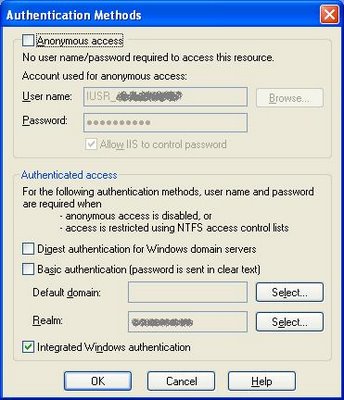
This worked great when accessing the site in Internet Explorer. However, when using Firefox, I would get prompted by Firefox for a set of credentials when first accessing the site. Entering my domain username and password did allow me to access the site successfully.
I wanted to avoid the login prompt with Firefox, so I Googled for firefox integrated authentication prompt. This turned up a couple of good results that pointed me to the solution:
- In the Firefox Location bar, type about:config and press enter.
- In the Filter bar that appears, type Network.automatic-ntlm-auth.trusted-uris and press enter.
- Under "Preference Name", double-click on Network.automatic-ntlm-auth.trusted-uris, and enter the name of the web server machine in the dialog that appears.
Now users are able to access the site without being prompted for credentials -- Firefox uses Integrated Authentication and automatically uses the user's domain credentials to log in.
Earlier today, I installed the Google Toolbar v2.0 beta update for Firefox. I've noticed a couple of problems since installing it:
Alt+g
The Alt+g keyboard shortcut to focus the search field on the toolbar no longer works. I can see why this was missed during testing because for most Firefox users, Alt+g opens the Go menu. However, in my copy of Firefox, I have the Go menu disabled, which I did for the specific purpose of allowing Alt+g to work with the Google toolbar instead (as it does in the Internet Explorer version of the Google toolbar)!
I reported this issue to Google via their contact form for the Toolbar, so hopefully they'll fix it in a future update.
Update 4/7/2006 8:30pm: I got a response back from the Google team via email. They let me know that Alt+s works in Firefox to focus the search field. I hadn't previously been aware of this; it sounds good to me, since Alt+s is even easier to reach on the keyboard with my left hand than Alt+g! Now I'll just have to train myself to use it...
It is kind of unfortunate that the Firefox and IE versions of the Toolbar use different keyboard shortcuts; I wonder if IE could be made to use Alt+s as well for consistency.
Publishing Posts on Blogger
In my previous blog post that I made earlier today after installing the Toolbar update, the post wouldn't publish properly; when I clicked the Publish button, the browser just got stuck in a loop trying to publish the post; the post showed up in my list of posts in the Blogger "control panel", but it didn't actually show up in the blog itself.
I ended up opening up IE instead and publishing the post from there, and it worked with no problem.
I'm not sure yet whether the Google Toolbar update is somehow to blame for this problem. We'll see how publishing this post goes!
Update: Publishing this post from Firefox with the new Google Toolbar installed worked with no problem. Looks like maybe it was just a temporary issue with the Blogger site itself earlier today, as I haven't made any other changes on my machine since then.
|
|


 Posts
Posts

