Showing posts with label video card. Show all posts

Friday, February 03, 2012

Possible Fix: On boot, blank screen after Windows 7 logo

This past week, my HTPC spontaneously started having a problem where, when booting, after the Windows logo was displayed, I would just get a blank (black) screen.  Windows apparently loaded ok – I just couldn’t see anything the screen.  One afternoon, things were working fine, but later that evening (not having manually made any changes to the PC), the problem started occurring.

In an attempt to keep this post brief, I’m going to omit the myriad of troubleshooting steps that I went through to try to correct this, and just provide the one that worked for me. If you’re having a similar issue, you can skip to the end of this post for my solution, although I’d suggest at least skimming the System Configuration and Symptoms to get a better idea of whether or not this solution might be applicable for your situation as well.

System Configuration

This problem occurred on a PC running Windows 7 Home Premium 64-bit, with an nVidia GeForce GT 430 video card, connected via HDMI cable to a TCL L40FHDF12TA LCD HDTV.

Prior to the problem occurring, the PC was successfully sending both video and sound to the HDTV via an HMDI cable, connected to the HDMI-out on the video card, and one of the HDMI-in ports on the TV, at the TV’s native resolution of 1920x1080 (1080p).

Symptoms

  • Upon a reboot, the PC would correctly display the text-mode POST information, followed by the graphical Windows 7 logo; but after that, the TV would just display a blank (black) screen.  The TV would report it was getting a 1280x720 signal from the PC. Also, the normal Windows boot sound did not play (even though I did have the volume up on the TV).
  • The problem would persist even after turning the TV off and back on, or changing channels on the PC and then changing back to the “HDMI 1” input, or when disconnecting and reconnecting the HDMI cable (without rebooting).
  • When booting into Safe Mode, the Windows desktop would display properly, and the system would be usable (albeit without sound, and at a reduced screen resolution). 
  • At one point midway though the troubleshooting process, I got things “partially fixed” such that the Windows desktop would come up when booting normally (not into Safe Mode).  (Unfortunately, I don’t recall exactly which specific troubleshooting step I took over the course of the multi-hour troubleshooting process to make this happen.)  When in the system was in this state, I observed multiple problems:
    • In the Screen Resolution dialog, Windows would only let me let me set the monitor to a maximum resolution of 1280x720 – not the full resolution of 1920x1080 supported by the TV.
    • Windows recognized the monitor as a “Generic non-PNP monitor”, not as the actual TCL TV model.
    • No sounds would play. In the Sound dialog (accessed from the Control Panel), there was an nVidia HDMI sound output listed, but it had a listed status of “Not plugged in” (even though the HDMI cable actually was plugged in).
    • The nVidia Control Panel software showed that the monitor was connected via DVI – not via HDMI as it actually was connected.  The software didn’t display a dropdown that would allow the connection type to be changed.
  • The same symptoms persisted when connecting the PC to the TV via the video card’s DVI-out port, the TV’s HDMI-in, and a DVI-HDMI adapter (and rebooting).

Solution

After trying many things to fix this, what eventually ended up working for me to fix the problem was to use Windows 7 System Restore to restore the system to a restore point a couple of weeks before the problem started happening.  Once this was done, all symptoms immediately went away; the TV once again successfully sent video and sound to the TV, Windows recognized the monitor as a TCL TV (not as a “generic non-PNP monitor”), and Windows allowed me to change the screen resolution to the TV’s native resolution of 1920x1080.

I’m still somewhat mystified as to the initial root cause of the problem; my best guess is that some Windows system file related to display output was (somehow) damaged, and that this was corrected by the System Restore.  The only thing listed on the System Restore dialog between the present time and the restore point that I selected (other than several manual video driver updates that I had applied during the troubleshooting process) was a series of automatically installed Windows Critical Updates. 

(The problem apparently wasn’t with one of the nVidia video driver files, as I tried installing multiple different versions of the display driver software to correct the problem, without success.  I even went so far as to use a “driver cleaner” utility to clean out all of the old nVidia files and registry entries before re-installing a new driver.)

If you’re having the same problem that I was, this solution may or may not work for you.  Still, it may be worth trying a System Restore as part of your troubleshooting process if other more obvious solutions (checking cables, reinstalling the video driver, etc.) aren’t working for you.  I hope this helps!

Wednesday, August 31, 2011

Blank screen after Windows logo: Apparent broken video card

I got a call from my wife while I was at work yesterday: There was a problem with our primary home PC, which runs Windows 7.  As the machine was booting, after the BIOS data appeared followed by the graphical Windows 7 “loading” logo on the primary monitor, the primary monitor went into sleep mode (as though it had been unplugged from the PC).  By moving the mouse around, the mouse cursor was visible on the secondary monitor, but clicking it (including right-click) didn't do anything.

Getting home, I saw the problem for myself.  I concluded that the Windows logon screen was being displayed on the primary monitor -- I just couldn't see it because the primary monitor was off.  I was able to log onto the machine blind (by arrowing over to my user profile, hitting Enter to activate it, keying in my password, and hitting enter again to log in).  Once in to Windows, I was able to make my secondary monitor become the primary monitor, via right-click on the desktop, selecting Screen Resolution from the Right-click menu, “rescuing” the Screen Resolution window from the sleeping primary monitor onto the secondary monitor to make it visible, then checking the “Make this my main display” checkbox on the secondary monitor.

I spent pretty much the entire evening troubleshooting the problem.  Here the long list of troubleshooting steps I tried:

Verify both ends of the monitor cable were firmly seated: It was seated properly.

Cold reboot: No change in behavior.

Install the latest video driver (for the video card, an NVidia Geforce 6800 GT): No change in behavior.

Install the latest monitor driver (for the primary monitor, a ViewSonic VX2035wm connected via DVI): No change in behavior.

Uninstall the monitor drivers (and let Windows reinstall them after rebooting): No change in behavior.

Uninstall Microsoft Security Essentials (which I had just recently installed) (on the theory that MSE could somehow be seeing the ViewSonic monitor driver as malware): No change in behavior.  (I reinstalled MSE again afterwards.)

Restore the system to a restore point from a few days prior (when I know the monitor had been working fine): No change in behavior.

Reboot into Windows Safe Mode: This actually did get the logon screen, and then the Windows desktop, to display properly on the primary monitor.  I was even able to increase the screen resolution from the safe mode default (1024x768, I think) back to the native resolution of 1680x1050.  I was not able to use dual-monitor display, though; the Screen Resolution dialog only detected the primary monitor while in Safe Mode.  Rebooting again (back into normal mode) brought me back to square one.

Uninstall the video driver (then reboot): After rebooting, the behavior was similar to safe mode; the primary monitor worked, but not the secondary.  Upon reinstalling the NVidia video driver and rebooting once more, it was again back to square one.

Reseat the video card (with the PC powered off, then boot back up): No change in behavior.

Unplug the secondary monitor (leaving only the primary monitor plugged in) (then reboot): This didn’t help.  I still got, after rebooting, the BIOS information visible, the graphical Windows 7 logo visible, then blank screen / sleeping monitor.

Swap the ports that the two monitors’ DVI cables were plugged into, then reboot: This actually caused me not to get anything display on either monitor.  I changed it back afterward.

Check BIOS settings: I didn’t notice anything unusual, or any settings that I could change that might be likely to fix the problem.  I ended up leaving everything alone.

Finally, after all that, I hit upon a good solution: I replaced the video card.  Specifically, (after powering both machines down and unplugging them, of course), I pulled the GeForce 6800 GT from my primary machine and set it aside; then, I pulled the GeForce GT 430 from my HTPC (leaving that PC with just the motherboard’s onboard audio/video), and installed that card in my primary PC; then I booted the primary PC back up.  After doing that, and letting Windows install the NVidia display driver, both monitors came up with no problem.

So even though I had been pretty convinced initially that I was looking at a software problem, probably a driver problem of some kind (given that the primary monitor worked fine at boot time, and even displayed the graphical windows logo, and also worked fine in Safe Mode), the problem apparently was that my GeForce 6800 GT decided to (partially) fail on me.  It was actually my lovely wife that made the astute observation that the fact that I had been fairly recently running that card at a scorching hot 100+ degrees C probably hadn’t helped matters!

Note that I don’t recommend that anyone else who encounters this issue (and comes across this blog post via a search) run out and spend $$$ to replace your video card as your first option.  In researching this issue online during the course of the troubleshooting, I did run across some reports from others of this same problem (screen goes blank after displaying the Windows logo during boot) who were able to solve their issue by doing one of the other steps that I tried, such as uninstalling and reinstalling video drivers.

For the time being, I’m in good shape with my workaround.  The lower-end but newer GeForce GT 430 is actually almost as good a video card as the original 6800 GT; and the HTPC can play TV and movies fine with the onboard video.  I guess this gives me something to put on my birthday list for my birthday coming up later this year!

Friday, August 26, 2011

Firefox: The case of the corrupted cursor

At work, I recently had the chance to upgrade to a new development laptop PC, a Thinkpad T520 running Windows 7.  The machine is excellent, with one weird exception: In Firefox (and only in Firefox), when keying in text into a text entry field in a web page or into the browser address bar, the caret (i.e. the text entry cursor) would sometimes appear to be “distorted” or “corrupted” – that is, some “garbage” pixels would appear around the caret whenever I moved it (either by typing in a character, or by using the arrow keys). 

Problem Details

The problem is hard to explain, so here’s a screen capture of a particularly severe example that occurred when I was entering text into a textarea.  The caret in this cropped screen shot is between the “2” and “5” in “8/25/2011”; note all the other weird stray black and white marks in the text.  (I added the red oval to the screen capture to show the area in which the “corruption” was appearing.

firefox caret garbage - crop

After waiting a little less than a second without moving the caret, the problem would go away – the “corruption” would disappear from the display.  However, the problem would come right back upon moving the caret again.

The caret itself would also sometimes not appear until the “corruption” went away, which made text editing surprisingly difficult – a frustrating problem.

Investigation

The problem would only occur in Firefox, not in other browsers such as Internet Explorer 9, or in any other applications I tried (such as Eclipse, Word, and Notepad).

Experimenting, I found that the problem would not occur when Firefox was started in Safe Mode (via Firefox menu | Help menu | Restart with Add-ons Disabled).  However, I tried running Firefox in normal mode with all extensions and add-ons manually disabled, and that didn’t help.  I tried setting up a new Firefox user profile, and that didn’t help either.

I also noticed that beyond the issues with the caret, the actual rendering/shape of letter character glyphs being typed into Firefox was affected.  The  characters themselves appeared “wrong” when Firefox was running in normal mode, but they appeared normally with Firefox in safe mode.  Here are two cropped screen shots I took of a bunch of “f” characters being entered in to the address bar, the first in normal mode, the latter in safe mode:

firefox address bar standard

firefox address bar safe mode

Here’s a zoomed-in view (again, normal mode first, then safe mode):

ffff_normal_zoom

ffff_safemode_zoom

Note that in the former image (Firefox normal mode), the “f” glyphs do not appear the same as one another and have some faint red/yellow/blue/green aliasing (blurring), whereas in the latter screen capture (Firefox safe mode) each “f” glyph is identical and has no aliasing (look at the unzoomed image).

At this point I was suspicious of some kind of issue with my video card.  The normal first course of action with a suspected video card behavior issue would be to update video card drivers.  When I checked, though, I found that I was already running the latest drivers for my video card (an NVidia NVS 4200M).

Google was initially no help; all the searches that I tried for terms like “firefox cursor corruption” or “firefox caret appearance” resulted in pages talking about the Firefox caret navigation feature (F7 key), which was not the issue here.

Solution

I hit upon the solution when I changed angles of attack and Googled for “firefox safe mode”.  The first result was a Firefox help article describing safe mode, which linked to a Mozillazine knowledge base article with more details on Firefox safe mode. That article in turn had a list of about a dozen bug repots related to safe mode, one of which was Bug 591139 - Disable hardware acceleration in safe mode. Aha – that sounded like a video-related issue!  Reading through that ticket, I learned that starting in Firefox 4, a feature called “hardware acceleration” (with which I was previously unfamiliar) is disabled when Firefox is in safe mode.

Hitting up Google once more, this time for “firefox disable hardware acceleration,” I was led to a setting in the Firefox options menu: Firefox menu | Options | Advanced | General tab | Use hardware acceleration when available

I unchecked that setting, restarted Firefox, and that did it – the problems with the caret corruption/garbage and the malformed character glyphs no longer occurred!

So apparently Firefox has an on-by-default feature where it uses hardware acceleration, presumably from the local PC’s video card, further presumably to improve its performance and/or ease load on the primary CPU.  However, having disabled this setting, I haven’t noticed any appreciable difference in performance.

I don’t know who is to blame for this issue – bad video driver, bad video hardware, Firefox itself, some combination of those, or something else entirely – but for the time being, I’m just satisfied that the issue is resolved for me!

I hope this saves some frustration and/or troubleshooting time for anyone else experiencing this odd issue!

Thursday, June 30, 2011

Fix: Monitor goes black and system hangs while gaming (video card overheat)

Earlier this week, I started having an unpleasant problem with my PC: While playing a game, both monitors connected to my PC would go black (as though the PC had powered off), and the system became unresponsive (the Num Lock light would no longer turn on and off when hitting the Num Lock key).  However, the music the game was playing would keep playing -- indicating that the PC hadn’t totally hung or shut down.  Opening the PC case, I noticed that my video card was very hot to the touch.

I had this happen three times in one night, in all cases happening while I was playing a game.  (It happened originally while playing Torchlight, and then again later while playing Magic: The Gathering 2012, and once again while playing the Avadon: Black Fortress demo.)

Given these symptoms, my original suspicion was an overheating-related issue with my video card (GPU), a XFX NVIDIA GeForce 9800 GT.  (The problem seemed to happen while the video card was under load; the system caused the monitors to go black but sounds kept playing; the video card was hot to the touch; the problem happened intermittently, across multiple applications.)

I posted the problem to SuperUser.com and got a helpful reply from user “Mokubai” confirming that the problem was indeed likely due to a GPU overheat, as well as a link to a very helpful free utility, GPU-Z, which (among other features) provides real-time reporting of the current GPU temperature.

I downloaded and ran GPU-Z.  It reported that the video card temperature with my PC just sitting idle at the Windows desktop was 83 degrees C (hot!).  I put GPU-Z on my secondary monitor and fired up Torchlight (a 3D game) in the primary window; after playing for just a few minutes, GPU-Z reported that my video card was up to a maximum temperature of 101 degrees C (extremely hot!), with the card’s fan running at 100% speed.  Clearly the GPU temperature was almost certainly to blame for the problem of my monitors losing signal and the PC hanging.

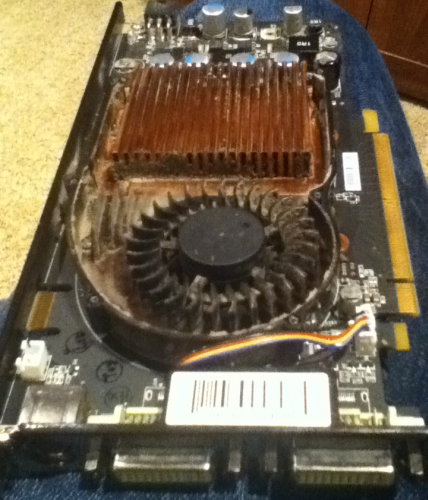
Tonight, I had some time to work on the problem, so I shut down and unplugged the PC and then removed the video card. The card was pretty grimy with dust.

I used a small Phillips screwdriver to remove the six screws holding the “cover” onto the card, and then removed the cover itself. Having done that, I could see that there was a lot of dirty material stuck in the narrow grooves of the heatsink, which was likely obstructing the air flow through the heatsink and preventing the card’s fan from cooling off the heatsink, causing the high temperatures.

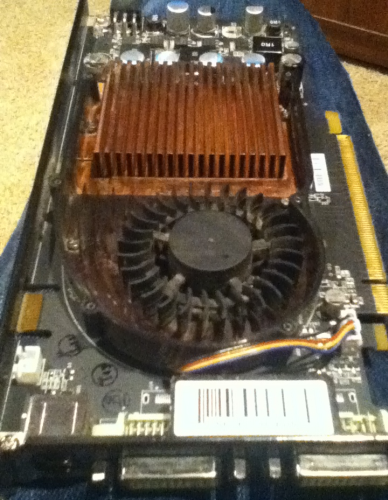
I took a pipe cleaner and cleaned all of the gunk out of the heatsink, the fan blades, and the other parts of the card. Much better!

GeForce9800GT_grimyGeForce9800GT_clean

(Images above: Left, XFX GeForce 9800 GT with cover removed, before cleaning; Right, after cleaning.)

Having thoroughly cleaned the video card, I replaced the cover and the screws, reinstalled the card in my PC, and then powered the PC back on.

The result: Much improved temperature readings from GPU-Z!  The GPU now idles at the Windows desktop at 61 degrees C, and hit a maximum temperature of 79 degrees C with an average temperature of around 75 degrees C while playing a session of Torchlight.  The video card’s fan speed never went above 43% while playing the game, indicating that the card itself didn’t think that it was running too hot.

Given that I was originally considering buying a new video card to deal with this problem – a solution that would have run me in the neighborhood of $100 – I’m pretty happy that I was able to fix this issue of the monitors going black while gaming “for free” just by taking a few minutes to give the video card a good cleaning.