I recently did troubleshooting for, and managed to successfully fix, an issue where HTTPS connections to a specific remote server were failing to be made successfully. The client computers affected by the issue were a pair of servers, running Windows 2012 R2 and Windows 2008 R2, respectively. For the purposes of this post, I’ll use https://tls.example.com as the URL of the remote server. The Problem Symptom 1: In a C# program, an attempt to establish an HTTPS (SSL / TLS) connection to https://tls.example.com failed. Error message: “The request was aborted: Could not create SSL/TLS secure channel.” - The program did work fine to make connections to all other HTTPS URLs that we had tried.
- The exact same C# program worked fine when I ran it from my local workstation as the client PC (connecting to the same https://tls.example.com remote server).
Symptom 2: In Internet Explorer 11, attempting to connect to https://tls.example.com failed. Error message: “Turn on TLS 1.0, TLS 1.1, and TLS 1.2 in Advanced settings and try connecting to again. If this error persists, contact your site administrator.” 
- However, connecting to https://tls.example.com using the Chrome browser from that same client PC worked fine.
- Connecting to https://tls.example.com from my local workstation using Internet Explorer 11 also worked fine.
The Solution Note: This solution will only help if the remote server is configured with an SSL key that has an ECDSA (not RSA) signature, but all of the the cipher_suites that the client PC is configured to support are RSA (not ECDSA). Note 2: If you’re reading this post after August 2016, check and make sure the new cipher_suites value that you add is one that’s still cryptographically valid. These things tend to change over time! Note 3: Don’t use Registry Editor (as suggested here) unless you know what you’re doing. It can permanently damage your PC. In my case, the problem was caused by there being no match between the set of cipher_suites supported by the client, and the set of values that the server was able to accept. Specifically, in my case, the server had an SSL key signed with ECDSA (not RSA), and my problematic client PCs were configured to use only ECDSA (not RSA) cipher_suites. This caused SSL handshaking to fail after the initial “Client Hello” step. I was able to fix this by adding a ECDSA value to my client PC’s set of cipher_suites: On the client PC: - Open the Registry Editor.
- Navigate to HKLM/SOFTWARE/Policies/Microsoft/Cryptography/Configuration/SSL/0010002
- Edit the existing comma-separated value, and add a new value to the end that’s supported by the client OS, is cryptographically secure, and works with a key with an ECDSA signature. The value I used: TLS_ECDHE_ECDSA_WITH_AES_128_GCM_SHA256_P256
- Reboot.
Investigation Details The remainder of this post details the investigation that led me to the above solution. SSL / TLS protocol mismatch? I’ve run into SSL handshaking problems before caused by a protocol mismatch. For example, the client specified that it would only connect using SSL 3.0 or TLS 1.0, but the server would only accept TLS 1.2. However, that did not seem to be the cause of the issue here (despite the Internet Explorer error message): - In my C# program, I was specifying that the client accept any of TLS 1.2 | TLS 1.1 | TLS 1.0.
- In Internet Explorer’s Advanced Options dialog, I confirmed that the checkboxes for TLS 1.2, TLS 1.1, and TLS 1.0 were all already checked (again, despite the error message).
- In Firefox, by clicking on the green lock icon in the address bar after successfully connecting to the remote website, I confirmed that the connection was secured using TLS 1.2.

As far as I could tell, both the client and server should be agreeing on the use of TLS 1.2. Thus, probably not a protocol mismatch issue. SSL certificate trust chain issue? When I asked myself the question “So what’s different between my local PC (where things work fine) and my server PCs (not working)?”, the first answer I came up with was, maybe the installed trusted SSL root certificates? However, that theory turned out to be a dead end in this case. When I used the “Manage server certificates” / “certlm” tool to look at the installed certificates on my PCs at Certificates > Trusted Root Certification Authorities, although there were some differences between the root certs on my local Windows 10 PC versus the root certs installed on the Windows Server 2012 R2 PC, that didn’t turn out to be the cause of the problem. Additional symptom: System event log error My first clue to the actual problem was a Windows System event log error that I noticed would be logged whenever I reproduced the HTTPS connection failure in Internet Explorer or my custom C# program: “A fatal alert was received from the remote endpoint. The TLS protocol defined fatal alert code is 40.” A helpful MDSN blog post defined that error code of 40 as “handshake_failure”. Network traffic sniffing using Microsoft Message Analyzer As suggested by another very helpful Microsoft blog post, I installed Microsoft Message Analyzer. (It turns out that I needed to install the 64-bit version of Analyzer to match my OS, even though as far as I know, browsers typically run as 32-bit processes.) Using Message Analyzer turned out to be easy. I just did the following: - In Analyzer, hit the “New Session” button;
- Selected “Local Network Interfaces”;
- Hit Start;
- Switched windows to my C# program, and reproduced the issue;
- Switched back to Analyzer, and hit the Stop button.

I filtered out all irrelevant events captured while my session was running by applying this filter: (*Source == "www.example.com" or *Destination == "www.example.com") and *Summary contains "Handshake" (Where both instances of “www.example.com” were replaced with the actual host to which I was connecting.) On my local PC where the HTTPS connection was working, the Message Analyzer results included a “Handshake: [Client Hello]” message originating from my local PC, followed by a “Handshake: [Server Hello]” originating from the server. However, on the Windows Server 2012 R2 machine where the the connection was failing, I could see the “Handshake: [Client Hello]” from the local machine was followed by an “Alert” reply from the server! Doing a right-click | Show Details on the Alert reply, I could see that it contained a body message of “Level 2, Description 40”. This reply must have been what the System Event Log was picking up to generate that message that I’d noticed earlier. Comparing the successful and unsuccessful Client Hello messages At this point, I’d narrowed down the difference between the succeeding and failing environments to the differing server replies to the initial “Client Hello” step of SSL handshake. Still in Message Analyzer, I did another Show Details to compare the contents of the “Client Hello” on my Windows 10 PC (working) and my Windows Server 2012 R2 machine (not working). The significant difference turned out to be the cipher_suites parameter in the body of each PC’s “Client Hello” message. 
As I learned, the cipher_suites parameter contains the list of encryption settings which the PC sending the message is able to handle. The idea is that the server picks the one from that list that it prefers, sends a “Server Hello” reply that includes the selected cipher suite, and the two sides use that to securely communicate. It turns out that while my Windows 10 PC (working) was sending a selection of 33 cipher_suites values that it was able to support, the Server 2012 R2 PC (not working) was sending only 11 cipher_suites values! Each cipher_suites value, while it appears in the raw message body as an integer, “translates” to a descriptive string value like: TLS_ECDHE_ECDSA_WITH_AES_256_GCM_SHA256. (Message Analyzer helpfully performs this translation when displaying the values in the cipher_suites value under the “body” value, as is mostly visible in the screenshot above.) The Microsoft article Cipher Suites in TLS/SSL provides a very helpful picture of what the parts of those cipher_suites values mean, which I’ll borrow and display here: 
Taking a closer look, the 33 cipher_suites values from the Client Hello message Windows 10 PC (working) included a mix of cipher_suites values contained a mix of RSA, DHE, and ECDSA as the Signature value. The 11 values from the Server 2012 R2 PC (not working) all had RSA as the Signature value! A Certificate Signing Algorithm Mismatch? Discovering that the not-working Server 2012 R2 PC was effectively saying that it would only support RSA as the cert signing method immediately suggested a new likely theory: If the server cert was signed with something other than RSA, the SSL handshaking would fail. Sure enough, drilling further down into the cert details in Firefox showed that the cert was signed with not RSA, but ECDSA: 
In essence, the failing SSL handshaking conversation was going like this: - Client [Client Hello]: Hey, let’s talk securely, using any of these methods (…), as long as you’ve got an RSA-signed cert!
- Server [Alert]: Sorry, nope, I can’t do business along those parameters. Bye!
Getting the Server 2012 PC to accept an ECDSA certificate A great blog post by Nartac Software on how their IIS Crypto tool works pointed me to the solution. A Windows registry key mentioned in that article contained the same set of cipher_suites values that I was seeing in the problem PC’s Client Hello SSL handshake message: HKLM\SOFTWARE\Policies\Microsoft\Cryptography\Configuration\SSL\00010002
In the Server Hello SSL handshake message on my working Windows 10 PC, I could see that the cipher_suites value that the server had selected to successfully communicate with was:
TLS_ECDHE_ECDSA_WITH_AES_128_GCM_SHA256
From that same article, another registry location has the list of supported cipher suites on the server:
HKLM\SYSTEM\CurrentControlSet\Control\Cryptography\Configuration\Local\SSL\00010002
Looking in that registry location on the Server 2012 R2 PC, I saw that one of the supported values was
TLS_ECDHE_ECDSA_WITH_AES_128_GCM_SHA256_P256
With the cipher suite portion of that key being a match for the accepted value that had been accepted by the server in the SSL handshake from my Windows 10 PC, I edited the comma-separated list of cipher suite values from the first 00010002 registry key above to include this additional cipher key value. Finally, I rebooted the Server 2012 R2 PC (since a reboot is required to make the change take effect).
After the reboot, the problems were solved! Internet Explorer was successfully able to connect to the target website, and my C# app was also able to successfully establish an HTTPS connection.
So how had this happened?
I posed the question to the failing client PCs’ hosting provider: Are Windows Server 2008 R2 and Windows Server 2012 R2 machines configured by default to only accept RSA SSL certs, or is this something that the hosting provider configures in their “default” images?
The answer, it turned out, was neither of the above. Instead, the missing non-RSA cipher suite values had been intentionally removed in an “server hardening” task performed some time in the past. This probably made sense originally, under an assumption that these servers would never themselves be acting as the client side of an HTTPS connection, and therefore for the sake of reducing attack surface, could have cipher suites with signature types other than the servers’ own cert signatures disabled.
When creating a RESTful web service with a GET method accepts a variable-length list of parameters, it can happen that URLs generated to call the service – including the query string containing the paremters – can end up being very long. I’m working on a REST method with a parameter that accepts a comma-delimited list of up to 2000 ID values. With ID values being up to 7 characters in length, the URL for a request with the maximum 2000 7-character ID values, plus an 8th comma separator character after each ID value, ends up being 16000+ charaters long. For example: http://mysite.example.com/api/products&productIDs=1000001,1000002,100003,…many more IDs here!…,1001999,1002000
After running into multiple obstacles trying to get my ASP.NET application running on IIS to successfully accept such incoming long request URLs without throwing errors, I’ve come to the conclusion that in situations like this, it’s better to have the API method accept HTTP POST instead of HTTP GET, and have the client pass the list of parameters in the message body intead of in the URL. This approach aligns with answers on Stackoverflow to the question Design RESTful GET API with a long list of query parameters.
However, I figured I’d go ahead and post the data I collected while troubleshooting the various errors that ASP.NET and IIS can return when a request with a long URL is submitted, in case I need this information again in the future, or in case it might help anyone else.
In all cases, the specific configured values (e.g. ”65535”) should be tailored to the specific needs of your application. Be aware that setting these values could have adverse security consequences for your application, as a large HTTP request submitted by an attacker won’t be rejected early in the pipeline as it would normally.
All of this investigation was done with an ASP.NET application targeting .NET Framework 4.5.1, running on IIS 10, on a Windows 10 64-bit PC.
Symptom 1
Response HTTP status code: HTTP 414
Response body: HTTP Error 414. The request URL is too long.
Relevant response header: Server: Microsoft-HTTPAPI/2.0
Fix 1
In the Windows Registry, at Computer\HKEY_LOCAL_MACHINE\SYSTEM\CurrentControlSet\Services\HTTP\Parameters, create a DWORD-type value with name MaxFieldLength and value sufficiently large, e.g. 65535.
Note: This error is actually thrown by http.sys, before the request even gets passed along to IIS in the request-handling pipeline. Thus, web.config settings aren’t able to address this particluar error. See article Check the “Server” HTTP header for the source of an error returned from IIS.
If you decide to make this change, then obviously it’ll need to be made in all environments (including all production server(s)) -- not just on your local dev PC. Also, whatever script and/or documentation your team uses to set up new server instances will need to be updated to include this registry setting, so that your team doesn’t forget to apply this setting 18 months from now when setting up a new production server. (This was a big reason that for the API I’m building, I opted to just scrap the long-GET-URL approach, and make my method a POST instead.)
References:
Symptom 2
Response HTTP status code: HTTP 404
Response body: (Empty)
Relevant response headers:
Server: Microsoft-IIS/10.0
X-Powered-By: ASP.NET
Fix 2
In web.config, add the following configuration (modifying existing elements when they are present, otherwise adding new elements):
<system.webserver>
  <security>
    <requestFiltering>
      <requestLimits maxQueryString="65535" />
    </requestFiltering>
  </security>
</system.webServer>
References:
Note: In my ASP.NET solution, I needed to make this change in my root project’s web config. This setting was ignored when I added the change in my API sub-project’s web.config. (This however was not the case for the web.config change mentioned in “Fix 3” below.) Related MSDN article: ASP.NET Configuration File Hierarchy and Inheritance
Symptom 3
Response HTTP status code: HTTP 400
Relevant response body text snippets:
System.Web.HttpException: The length of the query string for this request exceeds the configured maxQueryStringLength value.
[HttpException (0x80004005): The length of the query string for this request exceeds the configured maxQueryStringLength value.] System.Web.HttpRequest.ValidateInputIfRequiredByConfig() +492 System.Web.PipelineStepManager.ValidateHelper(HttpContext context) +55
Relevant response headers:
Server: Microsoft-IIS/10.0
X-AspNet-Version: 4.0.30319
X-Powered-By: ASP.NET
Fix 3
In web.config, add the following configuration (modifying existing elements when they are present, otherwise adding new elements):
<system.web>
  <httpRuntime maxRequestLength="65535" maxUrlLength="65535" maxQueryStringLength="65535" />
</system.web>
When an error response is returned from an HTTP request submitted to an IIS web server, the error response might actually be coming from http.sys (the “Hypertext Transfer Protocol Stack”), which processes incoming HTTP requests before they are passed along to IIS. You can determine the source of the error by looking at the “Server” HTTP header in the returned HTTP response. An error coming from http.sys will have the header: Server:Microsoft-HTTPAPI/2.0
An error coming from IIS will instead have a header like:
Server:Microsoft-IIS/XX.X
Here’s some handy C# code to dump all headers from a given WebResponse to the console:
for (int i = 0; i < response.Headers.Count; i++)
{
    string header = response.Headers.GetKey(i);
    string[] values = response.Headers.GetValues(i);
    Console.WriteLine(header + ": " + String.Join(", ", values));
}
Bonus tip: For a bit more information on errors generated by http.sys, check out the log files in this folder on the web server PC:
%windir%\System32\LogFiles\HTTPERR
References:
Here’s a quick tip on selecting text with the mouse that I’m blogging as much to help myself remember as to inform you, the reader: You can double-click-drag – that is, double-click, and continue holding the mouse button on the 2nd click – to select multiple entire words from a block of text. This obviates the need to position the mouse cursor exactly over the small space between words when selecting entire words or sentences, both when beginning and ending the selection. Bonus tip: You can triple-click to select an entire line or paragraph of text. (This one I do remember and use frequently – and get annoyed by those few applications that don’t support it.) These tips work in most applications on both Windows and Mac.
This morning I ran across a minor bug with the Windows common “Save As” dialog. I ran across the bug in the Chrome browser, and then was able to reproduce it using plain old Windows Notepad (notepad.exe). Bugs like this in common Windows components are rare enough that I figured it was worth a quick blog post. Steps to reproduce: 1. Open the Save As dialog for an application. (In my example, I opened a file named “myfile.txt” in Notepad, then did File | Save As.) 2. Navigate to a directory that already contains a file with the same name as the file to be saved. 
3. In the Save As dialog, create a new folder, e.g. by clicking the “New folder” button. 4. Still in the Save As dialog, drag the existing copy of the file to the new folder to move it there. 
5. Click the Save button. At this point, I would expect Windows to just go ahead and save the file. However, at this point Windows puts up a “File already exists. Do you want to replace it?” confirmation message, as if the existing copy of the file had not already been moved out of the way. 
This is only questionably a “bug,” since it doesn’t really hurt anything by happening, other than possibly causing some minor surprise/confusion on the part of the user, who may think they didn’t actually move the original copy of the file as they had intended. I assume this is happening because the dialog is doing some kind of caching of the contents of the destination folder at the time the folder is opened, and then not actually comparing against the actual contents on disk again at the time that the user clicks the Save button. I encountered this on Windows 7 (Pro, 64-bit). I’m not sure whether or not this also happens on other Windows versions. Obviously this “bug” is not a big deal at all, but irrespective of the occasionally-questionable popular perception of the quality of Microsoft products, I find Windows 7 to be generally pretty rock-solid stable when it comes to basic day-to-day operations (as it should be), so I was surprised to observe this behavior. I wonder if this is “working as intended,” or if Microsoft actually would consider this a bug?
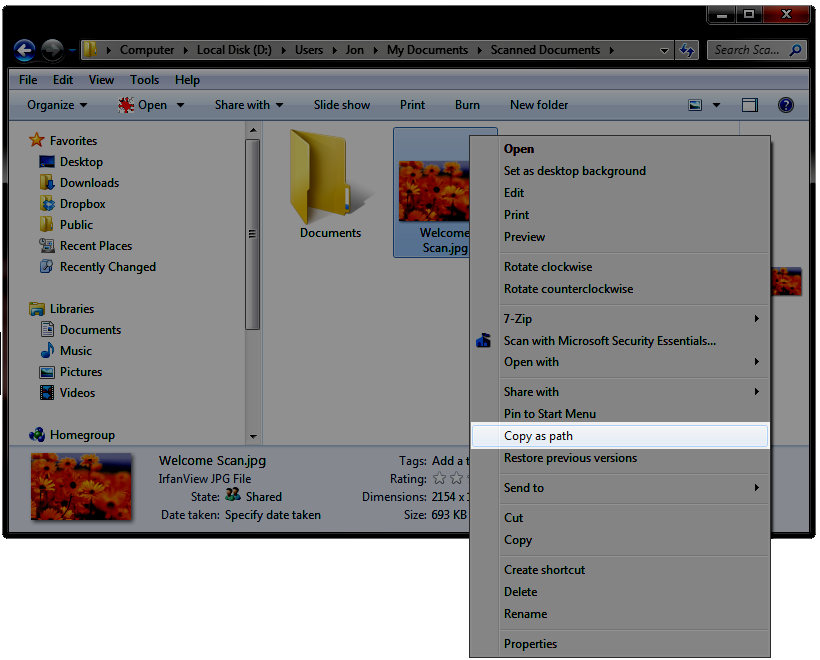
In Windows 7, if you ever have a file open in Windows Explorer that you know you’ll want to manipulate in another application, such as attaching the file to an email (or embedding an image in a blog post!), a quick way to copy the file’s fully-specified path and filename to the clipboard is to hold Shift and right-click the file, and select the Copy As Path option. 
Then, you can just press Ctrl+V to paste the path into the Open File… dialog of the target application! No need to drill down through your filesystem’s folder structure to find the file. It’s nice that this is included as native functionality in Windows 7. In Windows XP, it was necessary to use a 3rd-party utility such as ClipPath to get this same functionality.
This past week, my HTPC spontaneously started having a problem where, when booting, after the Windows logo was displayed, I would just get a blank (black) screen. Windows apparently loaded ok – I just couldn’t see anything the screen. One afternoon, things were working fine, but later that evening (not having manually made any changes to the PC), the problem started occurring. In an attempt to keep this post brief, I’m going to omit the myriad of troubleshooting steps that I went through to try to correct this, and just provide the one that worked for me. If you’re having a similar issue, you can skip to the end of this post for my solution, although I’d suggest at least skimming the System Configuration and Symptoms to get a better idea of whether or not this solution might be applicable for your situation as well. System Configuration This problem occurred on a PC running Windows 7 Home Premium 64-bit, with an nVidia GeForce GT 430 video card, connected via HDMI cable to a TCL L40FHDF12TA LCD HDTV. Prior to the problem occurring, the PC was successfully sending both video and sound to the HDTV via an HMDI cable, connected to the HDMI-out on the video card, and one of the HDMI-in ports on the TV, at the TV’s native resolution of 1920x1080 (1080p). Symptoms - Upon a reboot, the PC would correctly display the text-mode POST information, followed by the graphical Windows 7 logo; but after that, the TV would just display a blank (black) screen. The TV would report it was getting a 1280x720 signal from the PC. Also, the normal Windows boot sound did not play (even though I did have the volume up on the TV).
- The problem would persist even after turning the TV off and back on, or changing channels on the PC and then changing back to the “HDMI 1” input, or when disconnecting and reconnecting the HDMI cable (without rebooting).
- When booting into Safe Mode, the Windows desktop would display properly, and the system would be usable (albeit without sound, and at a reduced screen resolution).
- At one point midway though the troubleshooting process, I got things “partially fixed” such that the Windows desktop would come up when booting normally (not into Safe Mode). (Unfortunately, I don’t recall exactly which specific troubleshooting step I took over the course of the multi-hour troubleshooting process to make this happen.) When in the system was in this state, I observed multiple problems:
- In the Screen Resolution dialog, Windows would only let me let me set the monitor to a maximum resolution of 1280x720 – not the full resolution of 1920x1080 supported by the TV.
- Windows recognized the monitor as a “Generic non-PNP monitor”, not as the actual TCL TV model.
- No sounds would play. In the Sound dialog (accessed from the Control Panel), there was an nVidia HDMI sound output listed, but it had a listed status of “Not plugged in” (even though the HDMI cable actually was plugged in).
- The nVidia Control Panel software showed that the monitor was connected via DVI – not via HDMI as it actually was connected. The software didn’t display a dropdown that would allow the connection type to be changed.
- The same symptoms persisted when connecting the PC to the TV via the video card’s DVI-out port, the TV’s HDMI-in, and a DVI-HDMI adapter (and rebooting).
Solution After trying many things to fix this, what eventually ended up working for me to fix the problem was to use Windows 7 System Restore to restore the system to a restore point a couple of weeks before the problem started happening. Once this was done, all symptoms immediately went away; the TV once again successfully sent video and sound to the TV, Windows recognized the monitor as a TCL TV (not as a “generic non-PNP monitor”), and Windows allowed me to change the screen resolution to the TV’s native resolution of 1920x1080. I’m still somewhat mystified as to the initial root cause of the problem; my best guess is that some Windows system file related to display output was (somehow) damaged, and that this was corrected by the System Restore. The only thing listed on the System Restore dialog between the present time and the restore point that I selected (other than several manual video driver updates that I had applied during the troubleshooting process) was a series of automatically installed Windows Critical Updates. (The problem apparently wasn’t with one of the nVidia video driver files, as I tried installing multiple different versions of the display driver software to correct the problem, without success. I even went so far as to use a “driver cleaner” utility to clean out all of the old nVidia files and registry entries before re-installing a new driver.) If you’re having the same problem that I was, this solution may or may not work for you. Still, it may be worth trying a System Restore as part of your troubleshooting process if other more obvious solutions (checking cables, reinstalling the video driver, etc.) aren’t working for you. I hope this helps!
I got a call from my wife while I was at work yesterday: There was a problem with our primary home PC, which runs Windows 7. As the machine was booting, after the BIOS data appeared followed by the graphical Windows 7 “loading” logo on the primary monitor, the primary monitor went into sleep mode (as though it had been unplugged from the PC). By moving the mouse around, the mouse cursor was visible on the secondary monitor, but clicking it (including right-click) didn't do anything. Getting home, I saw the problem for myself. I concluded that the Windows logon screen was being displayed on the primary monitor -- I just couldn't see it because the primary monitor was off. I was able to log onto the machine blind (by arrowing over to my user profile, hitting Enter to activate it, keying in my password, and hitting enter again to log in). Once in to Windows, I was able to make my secondary monitor become the primary monitor, via right-click on the desktop, selecting Screen Resolution from the Right-click menu, “rescuing” the Screen Resolution window from the sleeping primary monitor onto the secondary monitor to make it visible, then checking the “Make this my main display” checkbox on the secondary monitor. I spent pretty much the entire evening troubleshooting the problem. Here the long list of troubleshooting steps I tried: Verify both ends of the monitor cable were firmly seated: It was seated properly. Cold reboot: No change in behavior. Install the latest video driver (for the video card, an NVidia Geforce 6800 GT): No change in behavior. Install the latest monitor driver (for the primary monitor, a ViewSonic VX2035wm connected via DVI): No change in behavior. Uninstall the monitor drivers (and let Windows reinstall them after rebooting): No change in behavior. Uninstall Microsoft Security Essentials (which I had just recently installed) (on the theory that MSE could somehow be seeing the ViewSonic monitor driver as malware): No change in behavior. (I reinstalled MSE again afterwards.) Restore the system to a restore point from a few days prior (when I know the monitor had been working fine): No change in behavior. Reboot into Windows Safe Mode: This actually did get the logon screen, and then the Windows desktop, to display properly on the primary monitor. I was even able to increase the screen resolution from the safe mode default (1024x768, I think) back to the native resolution of 1680x1050. I was not able to use dual-monitor display, though; the Screen Resolution dialog only detected the primary monitor while in Safe Mode. Rebooting again (back into normal mode) brought me back to square one. Uninstall the video driver (then reboot): After rebooting, the behavior was similar to safe mode; the primary monitor worked, but not the secondary. Upon reinstalling the NVidia video driver and rebooting once more, it was again back to square one. Reseat the video card (with the PC powered off, then boot back up): No change in behavior. Unplug the secondary monitor (leaving only the primary monitor plugged in) (then reboot): This didn’t help. I still got, after rebooting, the BIOS information visible, the graphical Windows 7 logo visible, then blank screen / sleeping monitor. Swap the ports that the two monitors’ DVI cables were plugged into, then reboot: This actually caused me not to get anything display on either monitor. I changed it back afterward. Check BIOS settings: I didn’t notice anything unusual, or any settings that I could change that might be likely to fix the problem. I ended up leaving everything alone. Finally, after all that, I hit upon a good solution: I replaced the video card. Specifically, (after powering both machines down and unplugging them, of course), I pulled the GeForce 6800 GT from my primary machine and set it aside; then, I pulled the GeForce GT 430 from my HTPC (leaving that PC with just the motherboard’s onboard audio/video), and installed that card in my primary PC; then I booted the primary PC back up. After doing that, and letting Windows install the NVidia display driver, both monitors came up with no problem. So even though I had been pretty convinced initially that I was looking at a software problem, probably a driver problem of some kind (given that the primary monitor worked fine at boot time, and even displayed the graphical windows logo, and also worked fine in Safe Mode), the problem apparently was that my GeForce 6800 GT decided to (partially) fail on me. It was actually my lovely wife that made the astute observation that the fact that I had been fairly recently running that card at a scorching hot 100+ degrees C probably hadn’t helped matters! Note that I don’t recommend that anyone else who encounters this issue (and comes across this blog post via a search) run out and spend $$$ to replace your video card as your first option. In researching this issue online during the course of the troubleshooting, I did run across some reports from others of this same problem (screen goes blank after displaying the Windows logo during boot) who were able to solve their issue by doing one of the other steps that I tried, such as uninstalling and reinstalling video drivers. For the time being, I’m in good shape with my workaround. The lower-end but newer GeForce GT 430 is actually almost as good a video card as the original 6800 GT; and the HTPC can play TV and movies fine with the onboard video. I guess this gives me something to put on my birthday list for my birthday coming up later this year!
At work, I have a particular folder on my Windows PC that I access many times per day to open and save various documents for the project that I’m working on. I have two conflicting needs for where in the filesystem that folder should be located": - C:\. As I prefer using the keyboard to the mouse for quick and easy tasks, the ideal location for this folder is directly off the root directory of the C: drive. It’s pretty easy to type, for example, “c:\proj\todo.txt” into an application’s Open dialog, or from the command prompt. I can do that more quickly than switching to the mouse, clicking “My Computer”, double-clicking “C:”, double-clicking the “proj” folder, scrolling “todo.txt” into view, and then double-clicking on that file.
- My Documents. My office’s automated backup policy only picks up documents that are located under the “My Documents” folder. While I could locate my “proj” folder under My Documents rather than under the C:\ root directory, typing “c:\documents and settings\jschneid\my documents\proj” 30 times a day rather than just “c:\proj” obviously becomes very inefficient very quickly.
So, to summarize the problem: I want my use-it-all-the-time “proj” folder to be at “c:\proj”, but I needed it to be under “My Documents” in order for it to be picked up by my office’s backup scheme. The solution: The Junction utility, part of Microsoft’s Sysinternals suite of tools. The Junction utility allows the creation of a folder at a particular location in the filesystem which is really a symbolic link (shortcut) to another folder, which the command prompt and Windows Explorer respect. In my case, I created my “proj” folder under My Documents (so it would be picked up by my office’s backup process). Then, I used Junction to create a symbolic link to that folder at “c:\proj” for easy access to that folder via the keyboard. This solution has worked out great for me. I type “c:\proj” many times every day – saving a couple of seconds over using the mouse to access that folder every time. I wanted to share this tip for anyone else out there who might be able to benefit from having an easy-to-access shortcut to a deeply-nested folder on their filesystem – and for those that might not have been aware that it’s possible to set up Unix-style folder symbolic links on Windows.
As I’ve previously posted for Windows XP, a user interface convention that I really wish would become a universal standard for applications that support multiple tabs (such as modern web browsers) is upon middle mouse button click on a tab, the application would close that tab. This is the standard behavior in Firefox, Internet Explorer 8, and Chrome (and probably other browsers, too). I also wish Microsoft would match the IE8 behavior and make “close application” the default behavior for a middle-click on an application taskbar button in Windows, since the Windows taskbar is essentially just a tab bar for open applications. Unfortunately, in Windows 7, middle-click on an application’s taskbar button is mapped to “launch new instance of application,” not to “close application.” Furthermore, there seems to be no out-of-the-box way to change this behavior. To the rescue: 7 Taskbar Tweaker by “RaMMicHaeL.” Among a few other available features, this utility does exactly what I’m looking for: On a PC running Windows 7, it remaps a middle-click on a taskbar application button to close that application. I’ve been using version 1.1 of the utility on my primary home PC running Windows 7 for months now, with no problems at all. Highly recommended if you’re a fan of the middle-click-to-close UI convention!
I’m currently attending a developer training class on a Java application that runs on the JBoss application server. When running a .bat script provided by the trainer on my Windows XP machine that is supposed to start JBoss (among other things), I and several others in the class were having the script fail with this error: Could not locate C:\path\bin\run.jar. Please check that you are in the bin directory when running this script. The path from the error message was not the correct JBoss directory containing run.jar, jboss-4.2.0.GA\bin, but a different directory. Searching through the files on my local machine revealed that this error message was coming out of the run.bat file in that same jboss-4.2.0.GA\bin folder. Looking at the source of run.bat, the script attempts to create and set a Windows environment variable named JBOSS_HOME. I noticed two lines in particular near the beginning of the file: if "%OS%" == "Windows_NT" set DIRNAME=%~dp0%
...
if "%OS%" == "Windows_NT" set PROGNAME=%~nx0%
From other parts of run.bat, I suspected that the root cause of the problem was that DIRNAME was not being set correctly.
From a command prompt, I ran "echo %OS%" (no quotes) -- this returned a value of WINNT -- not a value of Windows_NT as expected by the script.
Oddly enough, in the Environment Variables dialog in the Control Panel, the OS variable is set to Windows_NT -- the value is apparently being overridden by something else running on my machine. From talking to others in the training class, who had the script work from home but not while at the office, the override is apparently being done by one of the login scripts that automatically runs at when we log in to the corporate network.
In any event, the solution/workaround that we came up with was simply to edit run.bat and remove the OS check in the two above-mentioned lines, resulting in the following:
set DIRNAME=%~dp0%
...
set PROGNAME=%~nx0%
This got JBoss up and running successfully, despite the "incorrect" OS environment variable value on our Windows workstations.
This morning, I noticed that my work laptop, a Thinkpad T60 running Windows XP, was using its wireless network connection, even though the machine was docked and plugged in to the wired LAN. In Control Panel | Network Connections, the “Wireless Network Connection” showed “Connected,” but the “Primary Network Connection” showed “Disabled.” Right-clicking the “Primary Network Connection” and selecting “Enable” from the context menu resulted in a “Connection Failed!” message in a popup window, with no further details on the problem. I’m not sure how my “Primary Network Connection” became disabled in the first place, but I was able to re-enable it as follows: - In Control Panel | Network Connections, right-click on “Primary Network Connection” and choose “Properties”
- In the “Primary Network Connection Properties” dialog that appears, click the Configure button (near the top of the dialog).
- In the dialog that appears, if a message appears stating that the device is currently disabled, click the “Enable Device” button.
That fixed the problem for me. The wired connection started successfully, and the wireless connection disconnected automatically (as it normally does when the wired connection is active).
I recently installed Windows 7 Home Premium edition on my primary desktop machine at home. Since I built the machine fairly recently (November 2008), I was confident that my hardware could handle the OS; also, I had been running 64-bit Vista, which has similar hardware requirements. I was also curious to get a firsthand look at the Windows 7 given all of the positive buzz (particularly relative to Vista, which had comparatively negative buzz at launch). Finally, being a PC technology enthusiast, it’s always fun to be running the “latest and greatest.” My install experience was largely very positive. I did run into two significant snags, however. Snag #1 – Windows wouldn’t recognize my wireless card I run a wireless network at home, and have my PC connected to the network over the wireless (due primarily to the fact there happens to be no phone jack to plug my DSL modem into anywhere near the PC). The wireless card I’ve always used with this machine, and had no problems with, is a Netgear WG311v3 (an internal PCI-slot network card). Unfortunately, after getting Windows 7 installed, Windows wouldn’t recognize the WG311v3 card. The problem was that Windows 7 64-bit allows the use of only signed drivers, and Netgear has not released a signed driver for this card (despite the fact that this card is still actively sold in stores, as of the time of this writing). I was surprised by this problem, since apparently the restriction of using signed drivers only has been around in previous versions of Windows as well, and I had been using this card with no problems under Vista 64-bit – I’m still not sure at this point why this card worked for me under Vista 64-bit, but not Windows 7 64-bit. After fighting with this problem for 3 hours or so (trying alternative drivers, and other workarounds), I gave up: I temporarily ran a long ethernet cable across my living room to the router to allow me to get online, and I ordered an inexpensive MediaLink MWN-USB54G USB Wireless-G adapter ($30 on Amazon.com at the time of this writing) which had great reviews and was reported by multiple reviewers in their comments to work fine with Windows 7 64-bit. When the MWN-USB54G arrived a few days later, I plugged it in, and Windows 7 recognized it immediately and I was able to get online wirelessly with no problems – no need to use the enclosed CD. So, boo to Netgear for not releasing a signed driver for their WG311v3 wireless card, and a bummer that I had to spend a little money on new hardware, but at this point I’m happy and have had no problems with the MWN-USB54G over the past couple of weeks of use. Snag #2 – Problems initially getting Windows “activated” (registered) Prior to installing Windows 7, my machine had a single 1.0 TB hard drive; for the purposes of this post, I’ll call this “drive 1.” I had been running Vista Ultimate edition, for which a direct overinstall-type upgrade to Windows 7 Home Premium is not supported. A “default” path to getting Window 7 installed in this case might have been to do the following: - Move my 100+ GB of documents (mostly photos and home videos of the family) to external storage
- Format the hard drive
- Install Windows 7
- Recopy the 100+ GB of documents back onto the drive
However, I didn’t have a convenient way to copy the documents off the drive and then back on. I decided instead to do the following: - Remove the hard drive, “drive 1,” from the machine
- Add a new 500 GB hard drive to the machine, “drive 2,” to become the new C: drive
- Install Windows 7
- Add “drive 1” back to the machine – “drive 1” now becomes D:
This procedure successfully got me up and running with Windows 7, with Windows on my C: drive, and all of my documents on my D: drive. This plan did hit one significant snag: During the initial install, when I was prompted for my CD-key, Windows wouldn’t accept it. I double-checked the key I’d entered and verified it was correct, but entry of the key still failed with a generic error message. Being a power user, I figured I could just clear the CD-key field and hit “Continue,” and Windows would let me go through with the install – and this did indeed turn out to be the case – but I might have been stuck if I didn’t know to do that. Upon getting Windows up and running, I used the built-in “Activate Windows” utility (which I found easily simply by typing “Activate” into the Run/Search field on the Start menu – very cool!) to try and activate Windows using my CD-key once again. This time I got a better error message instead of the generic one I was getting during initial setup: “The Software Licensing Service determined that this specified product key can only be used for upgrading, not clean installations.” This made sense – Since I didn’t do an overinstall of Vista, and in fact had completely removed the drive with the Vista install on it from the machine completely while the initial Windows 7 install was running, of course Windows had no way of knowing that I legitimately was eligible for an “upgrade.” Still, it would have been nice to have gotten a better error message during the initial setup. Having realized the problem, I would have expected to have been offered some option to insert my old Vista DVD and/or enter my old Vista CD-key in order to prove to Windows 7 that I was, in fact, eligible for the upgrade, but there wasn’t any option like that. Ultimately, I ended up using a workaround that I found on Paul Thurrott’s article Clean Install Windows 7 with Upgrade Media to successfully activate Windows. I used “Method #2” from that page, and it worked fine for me! (Thanks, Paul!)
Although I am currently in the process of building a new PC for home, which will run 64-bit Vista and will become my new primary home PC, as of now (October 2008), I am still running Windows XP as my primary operating system both at home and at work. In recent years, I've accumulated a collection of software that in one way or another enhances the basic, low-level Windows XP user experience, and allows me to be more productive (or to just enjoy using my machines more!) This post details my Top 8 Windows XP customizations. Some of these may apply to Vista as well; once I have my new machine up and running with Vista for a while, I'll reprise this post and report which of these customizations are still useful under Vista, and which ones are no longer needed. There might also be some new additions to the list; time will tell! Note: Large applications such as Firefox are outside the scope of this list; I'm focusing in here on items that modify the behavior of Windows itself, or are otherwise basic utilities or tools that tweak the way that I use Windows. Homepage: http://www.ntwind.com/software/windowspace.html
Author: Alexander Avdonin
Supported Operating Systems: Vista, XP, 2000; 32-bit and 64-bit versions available
Price: US $34.90 (30-day free trial available)WindowSpace provides the cool feature of having windows "snap" to the edges of the screen, and to other windows, as you drag or resize windows using the mouse as you normally would. This is nice for taking advantage of the real estate of your screen area; before using WindowSpace, I would typically leave "dead space" between the borders of my non-maximized windows and the edges of my screen, because it was a nuisance to try to position a window exactly against an edge of the screen. Alexander really nailed the feel of how the "snap" behavior works; it feels very natural and intuitive. It also works just fine with multiple monitors. WindowSpace also provides some handy global hotkeys for resizing a window via the keyboard such that it is positioned against a desired edge of the current screen, and for other functionality related to window positioning and sizing, which can be remappend, and enabled or disabled. This is essentially the nice, fast desktop search built into Vista, back-ported to Windows XP. I have had an occasional issue with Windows Search 4 not finding an item that I know is present on my local hard drive (including items that have been around for a while, so it isn't an issue of the Windows Search indexer just not yet having added a newly-created document to its index); but for the most part, this is a great (and free!) improvement over the default local search functionality that ships with Windows XP. Note: Windows Search 4 does by default add a somewhat unsightly, screen-real-estate-consuming search field to the Windows Taskbar; I posted previously about how to hide the search field. I use the Win+F ("find") shortcut key to bring up Windows Search when I need it. #6: XP Black ("Zune") Style/ThemeHomepage: None; direct download link: http://go.microsoft.com/fwlink/?LinkID=75078
Author: Microsoft
Supported Operating Systems: XP
Price: FreeRather than a utility or functionality enhancement, this just plain makes Windows XP look cooler. This Black (or "Zune") style gives you another alternative to the default blue XP style (and the built-in silver and olive alternative styles) and the gray "classic" style. It was apparently developed by Microsoft to promote their Zune portable media player (hence the name). Even if you're not a Zune fan (I'm not a Zune owner, myself), this black style makes Windows XP look a lot sharper.  The theme doesn't currently seem to have a homepage anywhere on the Microsoft site, but you can still download the file directly from the Microsoft site, here: http://go.microsoft.com/fwlink/?LinkID=75078 (ZuneDesktopTheme.msi; 1.6 MB) Author: Suresh Online
Supported Operating Systems: XP, 2000, NT, ME, 98, 95
Price: FreewareClipPath adds an option to the right-click menu of Windows Explorer when a file or folder is clicked: "Clip Path" (to the clipboard). This is very useful to essentially get a reference to a filesystem file on the clipboard, which you can then paste directly into the "File | Open" dialog of another application (rather than using the dialog's GUI to drill all the way back through the filesystem to the file's location). I previously discussed ClipPath in a Utility of the Day post.  TaskSwitchXP is a great improvement to the default Alt+Tab interface provided in Windows XP. It supports several nice enhancements over the basic XP Alt+Tab interface: - Display of the full Titlebar text of all applications (not just the selected one), in addition to the application's icon;
- A preview of the appearance of the selected application's window;
- Allows an application to be selected via a mouse click (instead of only via Alt+Tab and Alt+Shift+Tab);
- Better support for many (22 or more) open applications.
Homepage: http://ditto-cp.sourceforge.net/
Author: Open Source (project admin: Maloney)
Supported Operating Systems: Vista(?), XP, 2000, NT, 98, 95
Price: FreewareDitto enhances the Windows clipboard such that when an item is placed on the clipboard, whatever was on the clipboard previously isn't lost, but is instead saved into a persistent storage area. A global Ditto Paste hotkey (I use Ctrl+Alt+V) can be set up to bring up Ditto's paste interface, which allows you to quickly paste an item that was stored to the clipboard recently, or even to do a search on older clipboard items and paste one of those. I didn't use Ditto heavily right after I installed it, but I've found that over time, I've come to rely on and take advantage of the productivity benefits of old clipboard items not being erased when something new gets saved to the clipboad. I previously posted about Ditto in a Utility of the Day post. Homepage: http://nerdcave.webs.com/
Author: Jay E.
Supported Operating Systems: Vista, XP, 2000, NT, 98, 95; 32-bit versions only
Price: FreewareI originally downloaded this utility for one reason: I wanted the ability to close applications from the Windows Taskbar by middle-clicking them (just like you can do in Firefox and other tabbed applications); after all, what is the Windows Taskbar if not a tabbed view of the system's open Windows applications? Taskbar Shuffle enables this middle-click-to-close behavior for taskbar tabs. Much easier than doing right-click | Close on many open applications (especially for those applications that put the "Close" option somewhere non-standard on the right-click menu). I've since started also Taskbar Shuffle for its primary purpose: Moving taskbar buttons around on the taskbar via drag-drop. The most obvious use case for this is moving my mail client back to its position at the top-left corner of the taskbar (where I always expect it to be!) after it crashes and I re-open it. Unfortunately, Taskbar Shuffle doesn't currenly support 64-bit versions of Windows. Taskix is an alternative which apparently has very similar functionality to Taskbar Shuffle and does support 64-bit Windows (including Vista), but I haven't tried it out yet myself. Update 7/1/2009: A 64-bit version is now available! Nice! Go check it out. I previously covered Taskbar Shuffle in a Utility of the Day post. Homepage: http://www.stevemiller.net/puretext/
Author: Steve Miller
Supported Operating Systems: Vista, 2003, XP, 2000, NT, ME, 98, 95
Price: Freeware PureText does just one thing, and does it very well: It sets up a global hotkey for "Paste unformatted text." It takes the text that you previously copied to the clipboard and pastes it into the current application, but without any rich text markup that might be stored in the clipboard along with the text. I typically use this at least on a daily basis, sometimes many times per day. For example: - Paste some code from Visual Studio or Eclipse into MS Word, without getting the font and background color from the IDE.
- Paste text from Word into another document (such as an email, a Powerpoint presentation slide, or a cell in an Excel sheet) in the current font of the target document, instead of the font from the Word document.
PureText allows you to assign the hotkey that will be used for this operation. I use the default of Win+V. The net result of the operation is like pasting the text into a plain notepad.exe window, and then re-copying and pasting it from Notepad into the target document; or like the MS Office menu option Edit | Paste Special | As Unformatted Text; but in a single, easy, step. Also, unlike the MS Office solution, PureText works regardless of the target application of the Paste is. ConclusionIn my experience with these utilities, each of them has been rock-solid stable. I place a premium on stability of my system, and have had nothing but good experiences with each one of these customizations. I hope this list of utilities is useful; if a utility on this list is new to you and sounds interesting, I'd encourage you to "be bold" and go ahead and give it a try. If you end up seeing a net productivity benefit, great! If not, the uninstallers are there for a reason. :-)
File this one under "so obvious that I couldn't figure it out!" Earlier today, I installed the recently-released Windows Search 4 for Windows XP. I'm going to give it a try not so much as a search tool, but primarily as a means of opening documents more quickly in cases when I already know where the document I want is located, but the location is multiple levels deep in my filesystem hierarchy, and it takes a few seconds to drill all the way down to it; I'm hoping just typing a few characters of the document's name and then opening the document from the search results turns out to be faster. When I installed Windows Search 4, it placed a search bar on my Windows Taskbar. I didn't really want the search bar there; I like to have maximum real estate available on the Taskbar for my open applications' buttons. (I don't have the Quick Launch bar or any other widgets present on my Taskbar, either; I use SlickRun to launch apps quickly using only the keyboard.) I'm also currently running a black Windows theme and a black desktop background, and the bright white rectangle of the search field was a bit of an eyesore. Since I knew that I could also bring up the search field with the global Win+F keyboard shortcut (as Windows Search 4 replaces the default Windows search functionality, including the Win+F shortcut), I poked around in the Windows Search options for a way to hide the search field on the Taskbar. Not seeing any relevant options there, I Googled for an answer, and didn't come up with anything immediately, but eventually found the answer in a reader comment in a downloadsquad.com article comparing Windows Search 4 and Google Desktop 5.5. Commenter "Quikboy" on that article noted that it is possible to hide the Windows Search field on the Taskbar, not from within the Windows Search options, but in the same way that you can hide any other Taskbar widget: Right-click an empty portion of the Taskbar, then on the context menu that appears, open the Toolbars sub-menu, and uncheck Windows Search Deskbar. So, that problem is solved! It remains to be seen how useful Windows Search 4 turns out to be in my everyday work, but at least while I'm making that determination over the next few days, I won't have the search field cluttering up my Taskbar!
Wouldn't it be nice if the "red squiggle" that appears under misspelled user-typed words in many applications these days (such as Microsoft Word and Firefox 2) would also appear under mistyped portions of a filesystem path in "Open File" dialogs and other places where the user can manually type in a path, such as the Start | Run dialog, and the address bar of a Windows Explorer window? 
Look closely at the highlighted section in the above Open dialog. The last word in the path name entered by the user, "mircosoft," is a nonexistent file/directory name, and so a "red squiggle" appears under that portion of the entered path. The image above is just a mockup; Windows XP doesn't actually do this. Are there any current operating systems out there that do? This would be a nice additional UI cue to the user that they have misspelled or mistyped something. Currently, the only such cue in Windows XP that the user gets is that intellisense suggestions (suggested path/file names) stop showing up under the input field.
A quick tip to make your Windows Taskbar a lot more usable is to expand its area and make it two rows high instead of one. A pair of pictures are worth 2000 words: 

These two images show the same Windows XP Taskbar with 12 applications running, and a bunch of icons in the system tray. The difference is that in the second image, the Taskbar has been expanded to be two rows high instead of just one. With the increased area available on the Taskbar, it's much easier to read the text that accompanies the icon on each application button, making it a lot easier to find (for example) a specific Firefox window or Word document. To increase the number of rows in the Taskbar in this manner, just use the mouse to drag the top edge of the Taskbar upwards. (You'll need to temporarily unlock the Taskbar first if you have it locked: Right-click an empty portion of the Taskbar, and uncheck the "Lock the Taskbar" option from the context menu that appears.) Increasing the Taskbar area to two rows has a few other benefits as well: - The system tray icons are grouped into three rows instead of just one, saving a lot of horizontal real estate on the Taskbar. As a result, there's even more room available for application buttons to be shown.
- Windows shows the day and date in addition to the time on the right edge of the Taskbar; no need to hover over the time display with the mouse to see that information anymore.
- Although it isn't shown in the screen cap above, I've found that the bit of empty space below the Start button is a great place to tuck a SlickRun command line into.
With the large screen resolutions (and hopefully, multiple monitors) available on modern machines, the additional screen real estate consumed by increasing the Taskbar size to a second row is trivial compared to the usability and productivity gains realized by doing so. (You might also note that I have the "Group Similar Icons" option from the Taskbar's Properties dialog turned off. That option does save some Taskbar real estate, but at the significant cost of not being able to identify or access specific application windows from the Taskbar with a single-click. Again, with the large amount of screen real estate available on modern systems, I don't see the benefit in ever having that option enabled.)
On Windows, it is possible to get into a situation where one or more application windows are positioned entirely outside of the bounds of the viewable area of the monitor. This can sometimes happen with a machine in a multi-monitor setup where one of the monitors is disconnected; an application window that is in the minimized state at the time that a monitor is unplugged can, when the window is restored (un-minimized), be restored to a position somewhere off the screen, in what was the viewable area of the disconnected monitor.
Here's one way to "rescue" such an off-screen window and bring it back onto the active monitor:
- Make the off-screen window the active window by clicking on its icon in the Windows Taskbar.
- Press Alt+Space, and then press the M key. This will activate the window's system menu, and put the window into "move mode."
- Press any arrow key once. This will put Windows into a mode where moving your mouse will drag the active window around the desktop (even without holding in a mouse button).
- Move the mouse around until the window reappears on the active monitor.
- Left-click once with the mouse (anywhere) to exit "move mode."
That's it! This works on Windows XP, Windows Vista, and Windows 7. I hope this helps!
You can quickly and easily create a .zip file containing the files and subfolders in a particular subdirectory tree in Windows XP by right-clicking the root folder of the subdirectory tree to be compressed in Explorer, and then selecting Send To | Compressed (zipped) Folder from the context menu that appears.

Doing this causes Explorer to create a .zip file with the contents of the subdirectory tree (with the same name as the name of the tree's root folder, plus a ".zip" extension), located in the same folder as the subdirectory tree's root folder. The files in the created .zip archive retain their full path information (so that the folder structure of the subdirectory tree will be retained when the archive is later uncompressed).
This technique is handy for doing things like compressing the subdirectory tree of a small development project's source code, in order to easily send the code (in the form of the created .zip file) to another machine. The technique is also nice because it doesn't require the use of any 3rd-party tools.
In most of today's major operating systems, the built-in clipboard has a significant limitation: it can hold only a single item a time. If you cut or copy a second item onto the clipboard, the first item is gone, with no direct way to recover it. Jeff Atwood posted about this issue recently in more depth on his excellent Coding Horror blog.
From the comments on Jeff's post, I learned about an excellent Windows utility that addresses this problem: Ditto. Ditto allows you to use a configurable system-wide hotkey (I'm currently using Ctrl+Alt+v) which brings up a "history browser" with all items that had been recently copied to the clipboard. Ditto automatically takes care of saving clipboard items, so that older items are no longer lost when a new item is copied to the clipboard.
Since installing Ditto on my machine, I've found myself using it more and more. In addition to being able to easily paste items that I know that I had on the clipboard recently, avoiding having to re-copy or retype them, Ditto enables me to in some cases plan ahead and do things more efficiently. For example, say that I have a large text document open, and I want to copy two nearby (but not adjacent) snippets of text from a location near the beginning of the document, and paste each of them to a location near the end of the document. With just basic operating system clipboard functionality, I'd need to:
- Copy item 1;
- Scroll to the end of the document;
- Paste item 1;
- Scroll back to the beginning of the document;
- Copy item 2;
- Scroll back to the end of the document;
- Paste item 2.
With Ditto, I can achieve the same end result more quickly:
- Copy item 1;
- Copy item 2;
- Scroll to the end of the document;
- Paste item 2;
- (Using Ditto) Paste item 1.
Ditto is written in C++, and is free and open-source. You can download it from the Ditto Homepage.
|
|





 Posts
Posts

