Sometime in mid-2013, I had a hankering to play a particular kind of RPG on my iPhone. I wanted a game with these features: - Turn-based combat.
- Portrait orientation, and thus playable with one hand. (e.g. while eating with the other hand.)
- A single protagonist/hero. One thing I don't like about party-based RPGs is that typically, a couple of your party members need be KO’ed before you feel like the team is actually in any real danger. This doesn't tend to happen against non-boss enemies in most games, and thus those games often end up feeling uninteresting for long stretches.
- Interesting decision-making in combat -- even vs. non-boss enemies -- something beyond the typical RPG trope of "do basic attacks / target enemy elemental weaknesses / heal self when injured / repeat."
- No hard-to-use on-screen virtual D-pad for character movement. Give me a way to move my character that’s designed especially for a touchscreen, not one based on a traditional physical controller’s tactile D-pad!
- A combat system built around LOW numbers and visible enemy HP / stats, so I can calculate that if, for example, that enemy has 9 HP left, then I can perfectly finish it off by doing my 4 and 5 HP attacks respectively over the next 2 rounds.
- FAST combat. No waiting on long combat animations; no wading through multiple menus to kick off a combat round. This is my phone; let me whip it out when I’ve got 30 seconds, and actually accomplish something quickly.
- No save points. Why not just always keep my game saved automatically? (Even mid-combat!)
- Game designed with a goal of fun, not of corporate revenue generation! Absolutely no IAPs or premium currencies or ads or stamina timers.
I couldn't find that game on the App Store. So... I decided to write it myself! After spending most of my evenings between 10:00pm and midnight (after my day job, spending time with my family, getting the kids into bed, and daily chores) for about 18 months designing and writing the game – learning the Objective-C programming language and the whole MacOS / iOS development ecosystem along the way – Vigil RPG was released in November 2014!  | Here’s Vigil RPG’s combat screen, which illustrates the realization a lot of the points noted above that I wanted to achieve with the game. You can check out more screen shots and info about the game at the Vigil RPG website! | Lifetime App Store Sales Stats I don't really have any reason to keep them private, and I thought it might be insightful for other #indiedev folks and industry observers, so without further ado, here are the lifetime sales statistics to date for Vigil RPG (iOS)! According to my developer account at iTunes Connect: 
- Released November 2014 at a price of US $2.99
- 354 paid copies sold, almost entirely at $2.99, with a few at $1.99 in a "birthday sale" in November 2015
- Total gross sales: US $1004
- About 70% of the lifetime sales of Vigil RPG came in the first 30 days after release.
- Vigil RPG got about ten 5-out-of-5-star community reviews on the App Store (and no 0-through-4-star reviews) immediately after release; it’s gotten zero community reviews since then. (Vigil RPG has no “review nag” prompts, which was an intentional design decision.)
- The second big spike in sales was after the 4-out-of-5-star TouchArcade review (which I was thrilled with, and found to be extremely on-point and fair – much respect to the reviewer, Shaun Musgrave). TouchArcade was the only major site to do a review.
- The little spike in November 2015 was the beginning of the $1.99 sale. Sales dropped off again rapidly even though I left the price at $1.99 for a while.
- Outside of the initial release and $1.99 sale periods, Vigil RPG sold at a rate of roughly 1 copy per week.
- Net proceeds after Apple's cut: US $707
- 3 x $US 99 of Apple annual developer licenses to develop the game and keep it live on the App Store = $297. Net proceeds after Apple dev license fees: $410
- Other misc. operating costs -- State of Michigan incorporation fees for Aggro Magnet Games LLC, web hosting for http://aggromagnetgames.com -- of around $100 to date. Bottom line proceeds to date: About $310
- 122 free copies redeemed (promo codes sent to review sites; a few free giveaways to try and drum up visibility and community interest)
- I didn’t bother trying to keep any stats on piracy rates, but at least one site out there (fairly readily findable via Google search) has the binary of the game posted for free download.
Given a very very rough estimate of about 600 hours spent creating the game, $310 in net profit works out to a wage of about $0.50/hour. Not exactly enough to quit the ol’ day job! (Fortunately, I already have a day job which I love!) I am, however, honestly totally fine with that performance. I made an intentional decision up front for my goal for the Vigil RPG project to be to "make the game I wanted to play" – with no design compromises being made for the sake of monetization. So no IAPs, no ads, no other typical "freemium" features (or “anti-features,” as the case may be) such as premium currencies or stamina timers. $0.99 Sale Consistent with my initial goal for Vigil RPG of prioritizing fun over profits, as of today, for the first time ever, the App Store price for Vigil RPG is reduced to $0.99! I’m hopeful that this will allow more people to enjoy the game – assuming there’s a segment of folks out there who are interested in iPhone RPGs, and are unwilling or unable to buy the game at the $2.99 price point, but will go ahead and pick it up for $0.99. The main reason I didn't just cut the price all the way down to $0.00 (free) was that admittedly there's somewhat more cachet in being able to say "The game I made is for sale on the App Store!" than "I made a game and I'm giving it away on the App Store since no one was really buying it!" It would also be nice if Vigil RPG’s proceeds would at least cover the annual $99 that Apple requires to keep it listed on the App Store. To that end, I might bump the price back to the original $2.99 at some point if sales at the $0.99 price point don’t generate much increased volume relative to the 1 sale/week or so of the $2.99 price. “Buy It Now!” Hopefully this detailed peek into one game’s iOS App Store performance was helpful, or at least mildly interesting! If you’d like read more about the gameplay of Vigil RPG, you can do so on the Vigil RPG website. Or, you can check out the full 5-to-10-hour adventure firsthand via Vigil RPG on the App Store if you’ve got an iOS device, and can scrape together enough loose change to join the exclusive club of premium iOS game owners! You can also hit me up with any questions you’ve got on Twitter at @AggroMagnetGame, or below in the comments!
Between early 2011 and November 2013, I carried an Apple iPod Touch (first a 4th gen., and later a 5th gen.) as my primary “pocket device,” along with an old pre-paid “dumbphone” flip phone for making the occasional phone call. As I’ve blogged previously, my reason for doing this was cost: The iPod Touch had no monthly fee, and the pre-paid phone cost only $7.50/month for about an hour’s worth of talk time, versus about $80/month (about $1,000/year!) for a smartphone with a data plan, accounting for taxes and fees. For me, the math basically boiled down to trading loss of GPS capability and the ability to access the Internet from non-WiFi locations for keeping an additional $900/year or so in my pocket. I was more than willing to accept that deal! However, my job just recently adopted a new policy of providing partial reimbursement to developers with on-call responsibilities for their smartphones, which changed the math quite a bit! Based on that, I sold my iPod Touch 5th gen on eBay (recovering around $210 of the original $300 purchase price, after shipping and fees – not bad!), and purchased a new iPhone 5S with service from Verizon. Here are my thoughts on the advantages – and disadvantages – of swapping out my iPod Touch and dumbphone for a new iPhone, after the first month or so of having made the swap. Pros Internet Anywhere I was a bit startled the first time I was driving down the road and heard the phone “ding” with a new incoming notification – the iPod Touch only ever did that when I was “stationary” (typically at home or at work)! The ability to look things up while on-the-go has already helped me out once: While en route to an appointment at a new doctor’s office, I didn’t remember the specific cross-streets of the office location, but I was able to pull out the phone (after pulling the car off the road) and get those looked up with no problem. Texting I could sort of do texting previously, using a combination of approaches: iMessage on the iPod Touch to connect with other Apple device owners; various email-to-SMS gateways and/or Google Voice to initiate text message conversations with others and receive replies; and (in a pinch) the 10-digit keyboard on the old prepaid dumbphone. It was difficult, however, to make it easy for others to contact me via text message, and also to contact non-Apple folks while out and about. Now I’ve joined the ranks of people for whom texting is easy! I just give out my phone number, and anyone can text me, and I can receive the message and reply easily wherever I am (except while driving, of course!). GPS I’ve had a GPS on my wish list for a long time; now I’ve been able to cross that off! My wife has carried a smartphone for a few years now, so whenever we went on a trip together, she had mapping covered. The few times a year I would go on a long trip alone, though, I would be obliged to do things as we did it back in the olden days: To print a hard copy of directions off the Internet ahead of time. (It’s certainly odd that we’ve reached a point where the phrases “back in the olden days” and “the Internet” can legitimately be used together in the same thought!) Unlimited Calling I previously avoided using my prepaid mobile phone for phone calls lasting more than a couple of minutes, since with my prepaid plan I only got a very small allotment of minutes per month; I’d use my home or office phone instead. Now, though, I no longer have to worry about using up minutes, so I have the freedom to use the mobile phone for longer calls. Pants Pockets For years, I’ve walked around everywhere on a daily basis with my pants pockets pretty full of stuff: At first a Moleskine notebook, and later the iPod Touch, in my left pocket; phone and keys and mini-pen in my right pocket. Now, with the single iPhone serving as both note-taking device and phone in my left pocket, I no longer need to stuff the dumbphone into my right pocket along with my keys. Luxurious! Vibration Alerting The iPod Touch 5th gen. didn’t have a vibration feature, so now I can be alerted to new incoming messages even when my phone is on silent mode and in my pocket. Firewall Circumvention Device (!) My office has a long-standing policy of no use of streaming music sites permitted on the company network. I’ve been somewhat envious for a while now of smartphone owners sitting near me who were able to use their phone’s data capability to listen to streaming music over the Internet, while I was limited to only my collection of mp3s on my local PC. Now, I too am able to enjoy the variety of listening to Pandora while at my desk! However, that does bring us to… Cons Bandwidth Cap I decided to go with Verizon as the carrier for my new iPhone for several reasons: (1) They allowed me to transfer my accumulated Alltel/Verizon prepaid account balance of $100+ as a credit on the new smartphone bill; (2) I get a corporate discount on Verizon services; (3) My wife is already on Verizon, I didn’t really want to have her switch, and it was cheaper to have us both on the same carrier. However, Verizon does impose a bandwidth cap on data usage. For the first time, I am having to consider questions such as just how much data does it use to stream Pandora for 8 hours? Form Factor The iPod Touch 5th gen. is very thin – even thinner than the iPhone. More than once, I had the slim iPod out and had someone notice the minimal width of the device and ask “What kind of phone is that?!” (I’d been tempted to answer that it was a prototype next-generation iPhone – mostly due to the irony that the device in question was actually less capable than a current-gen iPhone!) In practice, though, I’m finding that the additional bulkiness of the iPhone isn’t something I really notice, as compared to the iPod Touch. Monthly Fee The biggest con, obviously is that the substantial monthly cost of the iPhone (even when subsidized) doesn’t exactly compare favorably with the $0/month cost of the iPod Touch. After I’ve had the chance to use the iPhone for a longer period, I may do a follow-up on this post to comment on whether the advantages of the iPhone relative to the old iPod + dumbphone solution seem to have been worth the price.
What follows is something a little bit different: For your amusement, a somewhat steam-of-conciousness recounting of my first 60 minutes with a Mac Mini (purchased for the purpose of doing some on-the-side iOS development), from my background as a guy with 25+ years of DOS/Windows experience (dating back to doing BASIC development on an IBM PC my Dad brought home from work when I was 6 years old!) and some limited Unix/Linux experience, but no real Mac experience at all. Enjoy!
8:01 - Successfully booted up! Logitech mouse and "brand X" USB Windows keyboard (in use temporarily until next reboot, when I'll try my PS/2 IBM Model M keyboard with an adapter) appear to be working!
8:03 - Using Safari... the mouse scroll direction is backwards! I can't cope with that, Googling for a fix... okay, fixed it in System Preferences | Mouse.
8:06 - Some keyboard shortcuts use Win (Command)! Some still use Ctrl (Ctrl+Tab to switch browser tabs!) Confusing! A lot to learn!
8:11 - Keyboard document navigation is different!
- “Move one word at a time” now uses Alt (Option), not Ctrl!
- What’s the shortcut to jump to the beginning or end of a document?
8:14 - Middle-click doesn’t close tabs in Safari!
- Maybe I’ll switch to Firefox later. But going to stick out the “native experience” for now.
- Also, where are the favicons on the tabs? Hard to tell them apart.
8:17 - Ctrl+Tab doesn’t use MRU order in Safari!
- To be fair, no other browser gets this right either by default except Opera. Will be a deal-breaker though if it turns out that there’s no workaround, just like Chrome.
8:23 - Woah - Ctrl+LeftArrow takes me to some other desktop that shows a calendar and a calculator and some other stuff! (Hit that by accident trying to navigate within some text in an editor!)
8:27 - Looking through system preferences, Ctrl+UpArrow = Mission Control apparently! Seems like an interesting Alt+Tab (er, Cmd+Tab) alternative?
8:30 - Mouse button 4 (thumb button) doesn’t go Back in Safari! Is there a way to make that work?
8:32 - Some things are somewhat familiar from iPod Touch, e.g. Notifications Center and FaceTime.
8:35 - Safari seems bad at suppressing popup windows? Or maybe I’m just wandering into more “grey” parts of the Internet as I’m trying to look up things like keyboard shortcuts and haven’t learned yet which sites have good Mac info? But I've seen at least 2 spammy-looking popup windows show up in front of me so far.
8:37 - Thinking about security as I'm having to type in a couple of my passwords... How do I know that this Mac isn’t running a keylogger? What’s the equivalent of Ctrl+Shift+Esc on this thing? (Just tried that; it didn’t do anything, nor did Cmd+Shift+Esc, not that I really expected it to. Maybe a good old command-line ps -ef is the answer, like in Linux... will need to learn what's "normal" on this system and what's not.)
8:38 - Ok, so how do I open a Terminal window? Searching Google... Aha, Cmd+Space is kind of an analog to Win+R (or just the Win key as of Windows 7) on Windows. Then I can just type “terminal” and hit Enter.
8:41 - Where’s the filesystem explorer? I remember that it’s called “Finder” on Mac. Poking around... Ah, I see, it’s activated from the smiley mac face at the far left of the “applications bar” thingy at the bottom of the screen.
8:42 - The Close button is in the top-left of each window, not top-right. Is there an Alt+F4 (universal “close window” shortcut key) on this?
8:45 - Talking to my wife on her iPhone via “Messages!” Man, this thing works flawlessly, unlike any solution that I’ve tried on a PC to chat with her on her iPhone. User experience is just like my iPod Touch. Impressed, but at the same time disappointed at that lack of a good PC solution for me to use at work; real keys (PC) blow away virtual ones (iOS device) every time.
8:48 - The Home and End keys don’t work in the Messages message entry field, but they do work in other places like Google Docs running in Safari -- what’s that about? They don’t seem to work in the Safari address bar either?
8:50 - Thinking ahead to writing up all this as a blog post. Is there an equivalent to LiveWriter on Mac? I'll probably just use the Blogger web UI for starters.
8:52 - Oh, found by accident that Cmd+UpArrow/DownArrow is like Ctrl+Home/Ctrl+End. Was trying to do that Ctrl+UpArrow thing to activate Mission Control to find out where my terminal window went. Don’t see it... I must have closed it. But now I also see that Cmd+LeftArrow/RightArrow act like Home and End.
8:56 - What’s Launchpad do... ah, seems reminiscent of the iOS desktop. *All* of the icons!
8:58 - No Menu key? Is there a “right-click” key on Mac to bring up spelling fixes when the caret is on a misspelled word, without reaching for the mouse?
9:00 - Typing in a Safari textarea field and typoed in “cusotmer” and Safari is showing a little popup with the suggested corrected spelling “customer” -- great! But how do I accept that correction without reaching for the mouse and clicking on it? Just pressing space bar like on iOS doesn’t seem to do the trick? I can’t seem to use the tab key to get to the little popup either? ... Ah, I need to hit DownArrow and then enter, ok.
...And there you have it, the highlights of my first 60 minutes as a Mac user! Maybe I'll come back to this topic and do a "Mac Impressions - The First 60 Days" and give some more in-depth impressions once I've gotten to spend some significant time with this new machine.
Finally, here's one bonus thought to leave you with:
10:40 - I must have hit "Home" and/or "End" at least 15-20 times as I was editing this post, and in the process discovered that those keys on a Mac apparently serve to scroll the viewport (but not the insertion point, thankfully) to the beginning or end of a long editable text area, respectively! The muscle memory from all those years of DOS and Windows is baked in pretty hard. It will be interesting to see how difficult it is to overcome that as I continue using this new Mac... at least *some* of the time already I'm remembering to use Cmd+Left/Right instead of Home/End, but it's far from 100% at this early stage!
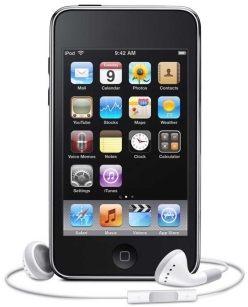
What’s my favorite technology purchase that I’ve made in the past 2 years? It’s my iPad Pocket Edition; I also like to call it my $0-monthly-fee iPhone. That is, my iPod Touch. 
My iPod Touch (or “iTouch” for 33% less syllables) has become one of the items that are always in my pants pockets when I leave the house in the morning, along with my keys, wallet, and phone. Why do I like the iTouch so much? When I’m in a wi-fi zone – which in a typical day for me, I am in much more often than not – it can do essentially everything an iPhone can do except make phone calls. It’s amazing to have the following readily available from a device I carry my pocket, almost all of which are free or very inexpensive: - Web browser
- Calendar with cloud sync
- Music (mp3 player, Pandora), Podcasts
- To-do list with cloud sync (Appigo Todo)
- Clock / stopwatch /countdown timer
- Games (tons of great, inexpensive options)
- Physical game aids like 7 Wonders Scorer
- Support for 99% of iPhone apps in the App Store
| | Insofar as they affect me, there are only three real major “missing features” affecting the iPod Touch as compared to an iPhone: Can’t make or receive phone calls. I work around this by carrying, in addition to the iTouch, a nice compact “dumbphone,” the Samsung Hue, for which I have a prepaid plan with Verizon that gets me phone service for a grand total of $7.50/month. I get very few minutes for that price, but since I only use this phone for quick calls to home and for emergency purposes, I’ve never come close to running out of minutes. No Internet access outside of wi-fi zones. This is occasionally bothersome, but only very occasionally; typically a couple of times per month when waiting to pick up a pizza or to get a haircut. For the significant cost savings vs. a full phone and data plan – more on that below – it’s certainly something that I can live with. And many apps have good “offline mode” support – implemented mostly to cater to iPhone users on airplanes, but working just fine for iPod Touch owners too. No GPS. When I take an occasional long trip alone to an unfamiliar place, I do notice the lack of GPS capability, but it’s nothing that can’t be worked around “the old fashioned way” by just printing directions off the Internet before leaving. (How did people find their way around before the Internet?) On vacations, I’m pretty much always travelling with my wife, and we do spring for a smartphone for her – as a so-called “stay at home mom” she’s actually out and about on a daily basis far more than I am – so we just use her phone’s GPS. If I travelled alone more often, I’d make a one-time purchase of a standalone GPS device for the car. The cost savings vs. an iPhone are, to me, well worth the minor drawbacks: | | iPod Touch 4th Gen (32 GB) + Prepaid dumbphone | iPhone 4S (32 GB) | | Up-front hardware cost | $275 + $50 = $325 | $300 | | Monthly fee | $0 + $7.50 = $7.50 | $70 | | Total over 2 years | $325 + ($7.50 * 24) = $505 | $300 + ($70 * 24) = $1980 | About $1500 to spend however I like, in return for a couple of (for me) minor drawbacks? Yep. I’m in. I like the iPod Touch enough that even though I’ve had my current 4th Gen iTouch for only about a year and a half, I’m also in for another $300 on the new iPod Touch 5th Gen that was announced earlier today. To paraphrase a tip from @shanselman, it’s worth spending money on something that you’re going to get heavy use out of every day – and for me, the iPod Touch is that. And at an amortized cost of under $13/month over the next two years, I consider it a bargain.
I have a 15-minute commute by car to work – so that’s about 2.5 hours I spend in the car going to and from work on a typical week. Occasionally I listen to music in the car, but most often I prefer listening to talk. Historically, I would typically listen to AM radio on the commute: sports, news, or just whatever was on any station I could find that wasn’t on commercial. For the past couple of years, though, I’ve listened to podcasts on the commute instead. For anyone unfamiliar with the term, a typical podcast is essentially a talk radio show that you can download online for free, and listen to on an mp3 player. Listening to podcasts have several significant advantages over AM radio: - Choice of Topic. At any given time, there are only a few topics available to listen to on talk radio shows. By contrast, there are a podcasts on a multitude of topics available for free download online. I’ve replaced listening to general news and sports talk on my commute with topics that are specifically of interest to me, like software engineering, Christian apologetics, and video games.
- On-Demand / Pauseable. With a podcast, the show starts exactly when I sit down in my car in the morning. And when there’s something interesting being discussed as I arrive at work, instead of missing the end of the discussion, I can just pause my mp3 player, and pick up the show right where I left off when I begin my commute home in the afternoon.
- Limited or No Commercials. Whereas a typical radio station plays commercials as much as 15% of the time or more, many podcasts are produced on a volunteer basis and are totally commercial-free. In my experience, in those podcasts that do run ads, the ads are fairly limited. And as a last resort, you can always skip past any particularly intrusive commercials that do happen to be present using the fast-forward function on your mp3 player!
My current mp3 player is an Apple iPod, so I use Apple’s iTunes software to subscribe to podcasts, and have the latest episodes automatically download to my PC. Then, when I sync my iPod with my PC (which I typically do once a week or so), I get several new episodes of my favorite podcasts to listen to on my commute over the next several days. Easy! (If you don’t have an iPod, there are several free RSS software packages out there that support audio files that you can use to subscribe to podcasts, and have the .mp3 files automatically download for you.) The only remaining challenge, then, is how to get the mp3 player output to play through the car speakers (since it’s for obvious reasons dangerous, and apparently in many places illegal, to drive while wearing headphones). With an older car, you can get an inexpensive device that converts an audio cassette player into a line-in jack for an mp3 player. Many newer cars these days come with a line-in jack built directly into the stereo system. However, I drive a model year 2005 car that has neither a line-in jack nor a cassette player. The solution I landed on for listening to my iPod in my car was a Griffin iTrip FM Transmitter / Charger. The device is essentially a short-range FM transmitter does a a short-range FM radio broadcast of whatever is playing on your iPod, using an FM frequency that is unused in your area (a frequency that you specify). Then, you just tune your car radio to that same FM frequency, and you can hear your iPod podcast (or music) over your car’s stereo system! I’ve actually bought two copies of the iTrip device – one back in late 2007 for myself, and a second one a year ago for my wife. Both devices are still in great working condition. Although the iTrip has an MSRP of US $70, it’s currently going for about $34 shipped on Amazon.com as I write this. Highly recommended, particularly at that reasonable price. Finally, a brief plug for a specific podcast: If you’re into video games, check out the Gamers With Jobs podcast. It’s a group of a few adult gamers that talk weekly about current games (across all of the major console platforms and the PC), and interesting gaming-related topics. The group has great chemistry and the show is often pretty funny. And it’s commercial-free! It’s my favorite podcast. So – try making your daily commute time more interesting and/or productive by listening to a podcast on a topic of interest to you while you’re driving back and forth to work, instead of just defaulting to whatever happens to be on the radio!
Here's a quick series of steps that can be taken to find album art for an album (music CD) to paste into Windows Media Player or iTunes:
- Open up Google Image Search. (Follow that link, or go to the Google.com main homepage and click the "Images" link there.)
- From Google Image Search, search on the album name. (If the album name is something generic, try entering both the album and artist name in the search field.)
- Click on one of the image results where the image size is a square and isn't tiny (e.g. 200x200).
- If the image isn't immediately visible on the page that comes up (or even before the page finishes loading, if you don't want to wait), click the "See full-size image" link that Google puts at the top of the page.
- Right-click the image and select the Copy option from the context menu that appears to put the image on your clipboard.
I found these steps useful when setting up my small music library in iTunes for the first time recently, having purchased my first iPod. These steps worked for even some of the non-mainstream CDs in my collection, such as Michigan Marching Band CDs and Black Mages CDs.
|
|




 Posts
Posts

