This is a "Remind my future self how to do this, but hopefully it'll be helpful for the rest of y'all too" post!
To change the timestamps on files exported from the Mac's Photos app to match the dates that the photos and/or videos were actually taken:
1. Install exiftool if it isn't already installed:
brew install exiftool
2. One a a time, run these two commands from the terminal, from the directory where the files are located:
for file in *.jpeg; do touch -t "$(exiftool -p '$CreateDate' -d '%Y%m%d%H%M' "$file")" "$file"; done
for file in *.mov; do touch -t "$(exiftool -p '$CreationDate' -d '%Y%m%d%H%M' "$file")" "$file"; done
When those are done, each file's timestamp should match the actual date that the photo or video was taken.
Any The ExtractEmbedded option may find more tags in the media data warnings can be ignored.
Background
When copying photos and/or videos from an iPhone to a Mac, the copied photos don't end up as individual files in the Mac's filesystem. Instead, they become part of the "Photos Library" on the Mac, in which all photos and movies are stored in a single "blob" file.
Fortunately -- for the purpose of copying and/or backing up photos elsewhere, on non-Apple computers or cloud storage -- the Mac's Photos app provides a capability to "export" photos and videos from the library as individual files. (This is accessed via File menu > Export.)
Two export options are provided: "Unmodified Originals" (which tend to have large file sizes); or as JPG, TIFF, or PNG files (for photos), and .mov files for videos (which produces smaller file sizes).
Unfortunately, the exported photo and image files have a timestamp (shown as "Date Modified" in Finder) of the time the export was performed -- not the time that each individual photo or video was actually taken.
For me, having the date shown for each file in Finder match the date that the photo/video was originally taken is a lot more useful. Hence, the procedure described earlier in this post to make that change.
"CreateDate" versus "CreationDate"
You may have noticed that in the two terminal commands above, the former uses the EXIF tag "CreateDate", and the latter, "CreationDate".
For some reason -- for photos and videos exported using the Photos app on macOS Ventura 13.4, and originally taken on an iPhone running iOS 16.5 -- exported .jpeg and .mov files, respectively, have inconsistent sets of EXIF tags.
The EXIF tags on a paritcular file can be inspected using exiftool via a terminal command like:
exiftool -s my_photo.jpeg
For my exported .jpeg files, this produces output like (with irrelevant tags excluded):
So both CreateDate and CreationDate values are present; however, here, "CreateDate" is the timestamp of the Mac Photos app export, and CreationDate is the actual time the video was recorded.
I'm sure there are excellent reasons behind this seemingly-inconsistent state of affairs; I am not aware of what those might be. 😅 In any event, it was easy enough, one I investigated and figured out what was going on, to split the exiftool command into two separate parts, for the EXIF tags that are actually present and correct in the .jpeg and .mov files, respectively.
My team at work was recently facing a problem where "magic link" login URLs being sent out via SMS (text message) were "broken" when received by iPhone users. Only part of the URL's query string portion was properly rendering as part of the link; the remainder -- despite not being separated by a space, or any URL-invalid characters -- was showing up as plain text:
A magic link in this context is an URL that includes a secure, tamper-evident key which identifies the user, and allows them to log in to the application that sent the link, in lieu of having to enter a password. (This has security pros and cons; that linked article provides a nice summary.)
My team is using JWT as the magic link key. JWTs are encoded into three portions, separated by period characters (remember that, it's important later!): A header; the message payload (including things like the user's ID, and the key's expiration time); and the signature verification.
In our case, only the first portion of the JWT value, the header, was being rendered by iPhone recipients of our SMS message as a part of the clickable hyperlink. The remaining two portions were showing up as plain text. This broke the magic link! While it still directed users to our site, it was unable to log them in.
I spent the day yesterday performing an investigation into why this was happening.
For starters, asking Google about the maximum length of an SMS message yields the answer "160 characters." Here in 2023, as far as regular users are concerned, this is no longer really true. (When's the last time you were composing a text message, and your phone stopped you from sending your message because it was longer than about half a Tweet?) All modern providers use "SMS concatenation" to, behind the scenes, break a long SMS message into multiple parts, and then seamlessly stitch those parts back together into a single message for the recipient.
I hypothesized: Perhaps Apple's implementation of SMS concatenation doesn't work when the URL itself is longer than 160 characters (as our magic link login URLs including a JWT token are)? No; I was able to disprove this by sending myself a text message with such an URL; it arrived in one piece, no problems.
(As an aside, I started out doing these tests by using the web UI of my work's existing Twilio account to send messages to my personal iPhone's number. This worked fine; I pretty quickly determined, though, that I could more expeditiously test by just using my Mac's Messages app to send messages to my own phone number. This produced the same results, as far as the received message ending up broken or not.)
Perhaps SMS concatenation doesn't work when the query string portion of the URL is longer than 160 characters? No; disproved by sending myself such a link, which once again was delivered in one piece, as expected.
Perhaps the problem is when a single query string key-value pair -- or just a query string value -- is longer than 160 characters? No; I was able to successfully send myself messages (using the string "1234567890" repeatedly as the query string value to achieve the target length) in with such query string values excess of 500 characters in length, no problems.
My testing went on like this. I was consistently able to reproduce the broken link behavior using an actual (Dev environment) magic login link; the behavior of any particular URL being broken or not appeared to be consistent/deterministic, at least. Further, by trimming down certain portions of that URL, the link would be correctly delivered in one piece.
By testing many message and URL variants, and recording for each one whether it succeeded or failed to deliver properly, along with the lengths of the various portions of the message text and the URL, I was finally able to pin down the problematic behavior. Here it is, in plain English:
For a given query string value: If that value contains any URL-valid punctuation characters (i.e. non-alphanumeric characters): If any portion (or "slice") of that query string value beyond the first portion, when separated/sliced by punctuation characters, is 302 characters or longer, the URL will break (on Apple devices). If all such portions are 301 characters or shorter, the URL will render correctly.
Recall that JWT values consist of 3 portions -- separated by period characters? This meant that if the token's 2nd (payload) or 3rd (signature) encoded portions were in excess of 301 characters, the resulting link would be broken when delivered to an iPhone.
(Notably: It's only Apple's handling of SMS messages, in their Messages / iMessage app on iPhone and on Mac, where links render as broken in this particular way. In my testing with Android clients, and with Google Voice, all links that I tested with were delivered correctly, regardless of length!)
Here are a few examples of working and broken URLs (when received by an Apple client). To save space (and to make this post less ugly!), instead of actually spelling out URL portions of 300+ characters, I'll represent such portions with the number of characters in that portion. The following links, when delivered to and viewed on an iPhone, or in Apple's Messages app on a Mac:
https://example.com?key=400 (OK; there are no punctuation characters in the query param value)
https://example.com?key=10.302 (BROKEN; the second portion of the query param value is longer than 301 characters)
https://example.com?key=301.301_301 (OK; no portion of the query param value is longer than 301 characters)
https://example.com?key=200~200.400 (BROKEN; the 2nd portion is ok, but the 3rd potion is longer than 301 characters)
https://example.com?key=400-50 (OK; only the first portion of the query param value is longer than 301 characters, and that doesn't manifest the problem)
https://example.com?key1=400&key2=400 (OK; the both query param values here consist only of "first portions", which don't manifest the problem)
To work around this problem -- and to produce links that are some what less nasty-looking on clients that render the entire URL -- I'm planning on making a pair of changes to our magic login tokens:
1. Reducing the payload content to "essential" values only. Namely, the user's email address, and an expiration date/time value. This will cut down on the middle "payload" portion of the JWT.
2. Using HS256 instead of RS256 as the signing algorithm. For our specific application and usage scenario, HS256 will provide sufficient security; but HS256 signature values are significantly shorter in length.
All of the aforementioned testing was done in June 2023 using an iPhone 12 running iOS 16.5.1; and a MacBook Pro running MacOS Ventura 13.4. Perhaps Apple will address this issue in future software versions? (But if this particular bug isn't at the top of their priority list, I certainly can understand why not. ☺)
Hopefully this post may be helpful to any of y'all out there who are researching why your SMS messages that include JWT magic link login URLs (or other long URLs including long query string values) being delivered to iPhone clients aren't rendering properly!
Would you like the ability to make your iPhone to emit a "gong" sound? Further, would you, ideally, like that gong sound to be accompanied by a low-fidelity, semi-realistic animation of an actual swinging gong? If so, then do I have the app for you!
Introducing Gong Sound, available for free on Apple's App Store!
The gong swings back and forth -- in a physics-approximating, 7-frame animation! -- for a few seconds after being tapped!
iPad support!
Supports landscape (device held sideways) mode!
High score counter! (With classic-arcade-like non-persistence!)
No ads! No in-app purchases! No data harvesting! No review nags! No network connectivity used or required!
FREE!
Wait... so it's just a gong app?
Yep. 🙂 The Gong Sound app is just a "toy" project. I got the code written, and the art and sound assets adapted, for the initial 1.0 version in all of a couple of hours. (As compared to the dozens of hours that I spent on Desktop Journey, or the hundreds spent making Vigil RPG!)
At my company, teams strike a gong that we have in the office as (part of) a celebration of notable achievements. In these days of remote work, I figured: Why not give folks an easy way to "gong" from home which sounds better than banging pots and pans together, and isn't likely to play an ad instead of the desired sound effect when the "Play" button is pressed.
(And doesn't violate any of the items in that second-to-last bulleted list item above, in the fashion of most existing similar apps on the App Store.)
Gong Sound is a free download on iOS devices, so if you're reading this post on your iPhone: Share and Enjoy!
This is a "just for fun" post on the pros and cons of traditional wired earbuds vs Apple AirPods for everyday use.
Hat tip to my brother Jeremy for inspiring me to finally put this post together. He was recently seen on Instagram rocking some sweet wired earbuds, even though he's retired, and has sufficient discretionary funds to buy himself AirPods, if he so chose!
Wired Earbuds
Apple AirPods
Price tag 💸
✅ From around US $10-15 💰
US $159+ 💰💰💰💰💰💰💰💰💰💰
Ease of switching between multiple devices (e.g. iPhone 📱 and MacBook 💻)
✅ Yes (on devices with a 3.5mm jack, like my iPhone 6S)
✅ Yes
Risk of inadvertently getting yanked or knocked out of ears 👂
Wires can get caught when doing chores
✅ Minimal
Works with newer iPhones
Dongle needed 🙄
✅ Yes 🍎💰
Looks like AirPods win in a landslide! Let's all throw away our inexpensive, never-needs-charging, high-fidelity earbuds, and buy AirPods! 😜
For clarity, I am indeed perfectly aware that the ship has (for the most part)
sailed on this debate. Apple, at least, doesn't seem likely to release a
new phone ever again with 3.5mm headphone jack technology, when they could sell
the folks buying that phone $160 AirPods instead. I stand by my entitlement to my
(unpopular) opinion on this topic regardless. 😁
I've just released a new, free app for iPhone: Desktop Journey!
Desktop Journey is a single-page
dashboard app for iPhone, with an attractive display of time, current and
next calendar appointments, reminders, weather, and micro-break
prompts. It gives your phone a purpose while it's in its charging cradle on
your desk while you work.
With the exception of an optional weather add-in, Desktop Journey is completely free and ad-free.
Why did I make Desktop Journey?
For a while now, when I'm at work at my desk, I've had my iPhone sitting in a charging cradle on the desk. I wanted to put the iPhone's screen to good use, so it wasn't just sitting there doing nothing.
This isn't adding value. We can do better!
I tried a few different alternatives to just a blank screen, such as a simple analog clock app, but I couldn't find any "dashboard" apps that took advantage of the phone's screen to display a variety of useful information.
So, as with Vigil RPG,
I decided to build it myself!
What does Desktop Journey do?
Here's an overview:
Read on for more details!
Current Time
The top portion of the screen is devoted to a simple analog clock.
Before creating Desktop Journey, I was using a simple iOS analog clock app
as a workaround, and I wanted to keep that core experience (while also
adding more to it).
A little "desktop calendar page" icon, styled to look like the native
iOS Calendar app icon, shows the current weekday, and day of the month.
"Now" and "Next"
These two panels, shown in the middle portion of the app, display calendar
events, reminders, and -- with an optional subscription -- weather and
temperature.
🗓Calendar events are taken from the device's calendar (after
permission has been granted to read the calendar). Thus, if you've already
set up your iPhone's calendar to sync with another source, such as a Google
or Microsoft Outlook account, events from that calendar will appear.
The "Now" panel shows the meeting or appointment that is happening
currently, if there is one. The "Next" panel shows just the upcoming
appointment (not all of the day's remaining appointments) -- plus the
single next appointment after that, if there is one immediately
following -- which makes for a nice at-a-glance answer to the question
"What do I have coming up next?".
Tapping on an event opens up the view of the current day's events in the
native iOS Calendar app.
🎗Reminders likewise are sourced from the native iOS (again,
only after you've granted permission).
The "Now" panel shows a reminder that was due earlier today that you haven't
completed yet, if there is one. The "Next" panel shows today's next upcoming
reminder that has a date and time set, if any.
Tapping a reminder opens it in the iOS Reminders app, so you can
mark it as complete, or edit it.
Temperature and weather for the current locale,
and today's upcoming high or low temperature, are optionally shown,
with the purchase of a subscription. (These cost me money
to subscribe to an API that provides worldwide weather information,
and while I'm happy to provide Desktop Journey for free, and with
no ads, I'd like to not lose money on it!) ☀
Celsius and Fahrenheit are both supported. Which is displayed can be
toggled on the Settings page.
The Hero's Journey
A hero character -- who may look familiar if you've played Vigil RPG!
-- walks along at the bottom of the screen, on a long journey.
The biome changes each day, providing some visual variety. In other words, if you run the app again
tomorrow, the hero will be somewhere else! There are several biomes, including
taiga (pictured up above), desert (pictured here), grassland, caves, forest, dungeon, and more.
The sky also changes, based on the real time of day: Night (as shown here), sunrise, daytime, and dusk.
Encounters - Tasks and Exercises
Several times per day -- at semi-random intervals; typically a little bit less frequently than once per hour --
an enemy encounter will take place!
Each encounter prompts you with an action
that you can perform yourself, "in real life," to defeat the enemy.
Each of these
are quick-to-perform actions that are good opportunities
to take a very brief break from whatever task you're working on
as the app is running. In this pictured example, you'd
stand up from your chair and stretch; then, you'd tap the ✅ button.
There's no time pressure; encounters will last
indefinitely (as long as the app is running), so you can delay if
needed,
and complete them at a convenient time. Alternatively, you
can always just hit the Skip button to bypass the
encounter instead.
There are two types of encounters: Tasks and exercises.
Tasks are like this one: A simple action that you can perform from your desk as a micro-break. Other tasks
include "tidy your workspace" and "message a loved one".
Exercises can help you get moving a bit during your work day. An example is "Do 5 push-ups!".
Exercise quantities can be adjusted with + and - buttons that appear during the
encounter; so you could tell the app you did less or more than 5 push-ups, for example.
The encounters feature can be turned on or off in the
Settings ⚙️ menu. Individual tasks and exercises can also be enabled or
disabled,
if (for example) your circumstances don't permit
standing up, or if you don't feel like being prompted to do push-ups. 🙂
When you complete an encounter, you'll get a stats display of how many of that task or exercise you've completed -- both today, and all-time.
Settings
Settings can be accessed by tapping the Settings ⚙️ icon at the
top of the app's page. In addition to customizing exercises, you can
disable
screen lock while the app is in the foreground; toggle
temperature units between Fahrenheit and Celsius; and view the in-app
"About" and
"Credits" pages.
Give it a try!
As mentioned above, Desktop Journey has no ads, and is a free download, so give it a try, and let me know if you like it! Download Desktop Journey on the App Store.
Sometime in mid-2013, I had a hankering to play a particular kind of RPG on my iPhone. I wanted a game with these features:
Turn-based combat.
Portrait orientation, and thus playable with one hand. (e.g. while eating with the other hand.)
A single protagonist/hero. One thing I don't like about party-based RPGs is that typically, a couple of your party members need be KO’ed before you feel like the team is actually in any real danger. This doesn't tend to happen against non-boss enemies in most games, and thus those games often end up feeling uninteresting for long stretches.
Interesting decision-making in combat -- even vs. non-boss enemies -- something beyond the typical RPG trope of "do basic attacks / target enemy elemental weaknesses / heal self when injured / repeat."
No hard-to-use on-screen virtual D-pad for character movement. Give me a way to move my character that’s designed especially for a touchscreen, not one based on a traditional physical controller’s tactile D-pad!
A combat system built around LOW numbers and visible enemy HP / stats, so I can calculate that if, for example, that enemy has 9 HP left, then I can perfectly finish it off by doing my 4 and 5 HP attacks respectively over the next 2 rounds.
FAST combat. No waiting on long combat animations; no wading through multiple menus to kick off a combat round. This is my phone; let me whip it out when I’ve got 30 seconds, and actually accomplish something quickly.
No save points. Why not just always keep my game saved automatically? (Even mid-combat!)
Game designed with a goal of fun, not of corporate revenue generation! Absolutely no IAPs or premium currencies or ads or stamina timers.
I couldn't find that game on the App Store.
So... I decided to write it myself!
After spending most of my evenings between 10:00pm and midnight (after my day job, spending time with my family, getting the kids into bed, and daily chores) for about 18 months designing and writing the game – learning the Objective-C programming language and the whole MacOS / iOS development ecosystem along the way – Vigil RPG was released in November 2014!
Here’s Vigil RPG’s combat screen, which illustrates the realization a lot of the points noted above that I wanted to achieve with the game. You can check out more screen shots and info about the game at the Vigil RPG website!
Lifetime App Store Sales Stats
I don't really have any reason to keep them private, and I thought it might be insightful for other #indiedev folks and industry observers, so without further ado, here are the lifetime sales statistics to date for Vigil RPG (iOS)! According to my developer account at iTunes Connect:
Released November 2014 at a price of US $2.99
354 paid copies sold, almost entirely at $2.99, with a few at $1.99 in a "birthday sale" in November 2015
Total gross sales: US $1004
About 70% of the lifetime sales of Vigil RPG came in the first 30 days after release.
Vigil RPG got about ten 5-out-of-5-star community reviews on the App Store (and no 0-through-4-star reviews) immediately after release; it’s gotten zero community reviews since then. (Vigil RPG has no “review nag” prompts, which was an intentional design decision.)
The second big spike in sales was after the 4-out-of-5-star TouchArcade review (which I was thrilled with, and found to be extremely on-point and fair – much respect to the reviewer, Shaun Musgrave). TouchArcade was the only major site to do a review.
The little spike in November 2015 was the beginning of the $1.99 sale. Sales dropped off again rapidly even though I left the price at $1.99 for a while.
Outside of the initial release and $1.99 sale periods, Vigil RPG sold at a rate of roughly 1 copy per week.
Net proceeds after Apple's cut: US $707
3 x $US 99 of Apple annual developer licenses to develop the game and keep it live on the App Store = $297. Net proceeds after Apple dev license fees: $410
Other misc. operating costs -- State of Michigan incorporation fees for Aggro Magnet Games LLC, web hosting for http://aggromagnetgames.com -- of around $100 to date. Bottom line proceeds to date: About $310
122 free copies redeemed (promo codes sent to review sites; a few free giveaways to try and drum up visibility and community interest)
I didn’t bother trying to keep any stats on piracy rates, but at least one site out there (fairly readily findable via Google search) has the binary of the game posted for free download.
Given a very very rough estimate of about 600 hours spent creating the game, $310 in net profit works out to a wage of about $0.50/hour. Not exactly enough to quit the ol’ day job! (Fortunately, I already have a day job which I love!)
I am, however, honestly totally fine with that performance. I made an intentional decision up front for my goal for the Vigil RPG project to be to "make the game I wanted to play" – with no design compromises being made for the sake of monetization. So no IAPs, no ads, no other typical "freemium" features (or “anti-features,” as the case may be) such as premium currencies or stamina timers.
$0.99 Sale
Consistent with my initial goal for Vigil RPG of prioritizing fun over profits, as of today, for the first time ever, the App Store price for Vigil RPG is reduced to $0.99! I’m hopeful that this will allow more people to enjoy the game – assuming there’s a segment of folks out there who are interested in iPhone RPGs, and are unwilling or unable to buy the game at the $2.99 price point, but will go ahead and pick it up for $0.99.
The main reason I didn't just cut the price all the way down to $0.00 (free) was that admittedly there's somewhat more cachet in being able to say "The game I made is for sale on the App Store!" than "I made a game and I'm giving it away on the App Store since no one was really buying it!"
It would also be nice if Vigil RPG’s proceeds would at least cover the annual $99 that Apple requires to keep it listed on the App Store. To that end, I might bump the price back to the original $2.99 at some point if sales at the $0.99 price point don’t generate much increased volume relative to the 1 sale/week or so of the $2.99 price.
“Buy It Now!”
Hopefully this detailed peek into one game’s iOS App Store performance was helpful, or at least mildly interesting!
If you’d like read more about the gameplay of Vigil RPG, you can do so on the Vigil RPG website. Or, you can check out the full 5-to-10-hour adventure firsthand via Vigil RPG on the App Store if you’ve got an iOS device, and can scrape together enough loose change to join the exclusive club of premium iOS game owners!
You can also hit me up with any questions you’ve got on Twitter at @AggroMagnetGame, or below in the comments!
Between early 2011 and November 2013, I carried an Apple iPod Touch (first a 4th gen., and later a 5th gen.) as my primary “pocket device,” along with an old pre-paid “dumbphone” flip phone for making the occasional phone call. As I’ve blogged previously, my reason for doing this was cost: The iPod Touch had no monthly fee, and the pre-paid phone cost only $7.50/month for about an hour’s worth of talk time, versus about $80/month (about $1,000/year!) for a smartphone with a data plan, accounting for taxes and fees.
For me, the math basically boiled down to trading loss of GPS capability and the ability to access the Internet from non-WiFi locations for keeping an additional $900/year or so in my pocket. I was more than willing to accept that deal!
However, my job just recently adopted a new policy of providing partial reimbursement to developers with on-call responsibilities for their smartphones, which changed the math quite a bit! Based on that, I sold my iPod Touch 5th gen on eBay (recovering around $210 of the original $300 purchase price, after shipping and fees – not bad!), and purchased a new iPhone 5S with service from Verizon.
Here are my thoughts on the advantages – and disadvantages – of swapping out my iPod Touch and dumbphone for a new iPhone, after the first month or so of having made the swap.
Pros
Internet Anywhere
I was a bit startled the first time I was driving down the road and heard the phone “ding” with a new incoming notification – the iPod Touch only ever did that when I was “stationary” (typically at home or at work)!
The ability to look things up while on-the-go has already helped me out once: While en route to an appointment at a new doctor’s office, I didn’t remember the specific cross-streets of the office location, but I was able to pull out the phone (after pulling the car off the road) and get those looked up with no problem.
Texting
I could sort of do texting previously, using a combination of approaches: iMessage on the iPod Touch to connect with other Apple device owners; various email-to-SMS gateways and/or Google Voice to initiate text message conversations with others and receive replies; and (in a pinch) the 10-digit keyboard on the old prepaid dumbphone. It was difficult, however, to make it easy for others to contact me via text message, and also to contact non-Apple folks while out and about.
Now I’ve joined the ranks of people for whom texting is easy! I just give out my phone number, and anyone can text me, and I can receive the message and reply easily wherever I am (except while driving, of course!).
GPS
I’ve had a GPS on my wish list for a long time; now I’ve been able to cross that off! My wife has carried a smartphone for a few years now, so whenever we went on a trip together, she had mapping covered.
The few times a year I would go on a long trip alone, though, I would be obliged to do things as we did it back in the olden days: To print a hard copy of directions off the Internet ahead of time. (It’s certainly odd that we’ve reached a point where the phrases “back in the olden days” and “the Internet” can legitimately be used together in the same thought!)
Unlimited Calling
I previously avoided using my prepaid mobile phone for phone calls lasting more than a couple of minutes, since with my prepaid plan I only got a very small allotment of minutes per month; I’d use my home or office phone instead. Now, though, I no longer have to worry about using up minutes, so I have the freedom to use the mobile phone for longer calls.
Pants Pockets
For years, I’ve walked around everywhere on a daily basis with my pants pockets pretty full of stuff: At first a Moleskine notebook, and later the iPod Touch, in my left pocket; phone and keys and mini-pen in my right pocket. Now, with the single iPhone serving as both note-taking device and phone in my left pocket, I no longer need to stuff the dumbphone into my right pocket along with my keys. Luxurious!
Vibration Alerting
The iPod Touch 5th gen. didn’t have a vibration feature, so now I can be alerted to new incoming messages even when my phone is on silent mode and in my pocket.
Firewall Circumvention Device (!)
My office has a long-standing policy of no use of streaming music sites permitted on the company network. I’ve been somewhat envious for a while now of smartphone owners sitting near me who were able to use their phone’s data capability to listen to streaming music over the Internet, while I was limited to only my collection of mp3s on my local PC. Now, I too am able to enjoy the variety of listening to Pandora while at my desk! However, that does bring us to…
Cons
Bandwidth Cap
I decided to go with Verizon as the carrier for my new iPhone for several reasons: (1) They allowed me to transfer my accumulated Alltel/Verizon prepaid account balance of $100+ as a credit on the new smartphone bill; (2) I get a corporate discount on Verizon services; (3) My wife is already on Verizon, I didn’t really want to have her switch, and it was cheaper to have us both on the same carrier.
However, Verizon does impose a bandwidth cap on data usage. For the first time, I am having to consider questions such as just how much data does it use to stream Pandora for 8 hours?
Form Factor
The iPod Touch 5th gen. is very thin – even thinner than the iPhone. More than once, I had the slim iPod out and had someone notice the minimal width of the device and ask “What kind of phone is that?!” (I’d been tempted to answer that it was a prototype next-generation iPhone – mostly due to the irony that the device in question was actually less capable than a current-gen iPhone!)
In practice, though, I’m finding that the additional bulkiness of the iPhone isn’t something I really notice, as compared to the iPod Touch.
Monthly Fee
The biggest con, obviously is that the substantial monthly cost of the iPhone (even when subsidized) doesn’t exactly compare favorably with the $0/month cost of the iPod Touch. After I’ve had the chance to use the iPhone for a longer period, I may do a follow-up on this post to comment on whether the advantages of the iPhone relative to the old iPod + dumbphone solution seem to have been worth the price.
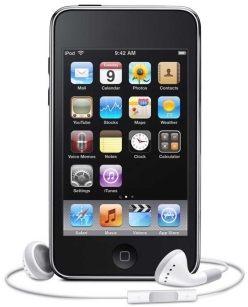
My iPod Touch (or “iTouch” for 33% less syllables) has become one of the items that are always in my pants pockets when I leave the house in the morning, along with my keys, wallet, and phone.
Why do I like the iTouch so much? When I’m in a wi-fi zone – which in a typical day for me, I am in much more often than not – it can do essentially everything an iPhone can do except make phone calls. It’s amazing to have the following readily available from a device I carry my pocket, almost all of which are free or very inexpensive:
Insofar as they affect me, there are only three real major “missing features” affecting the iPod Touch as compared to an iPhone:
Can’t make or receive phone calls. I work around this by carrying, in addition to the iTouch, a nice compact “dumbphone,” the Samsung Hue, for which I have a prepaid plan with Verizon that gets me phone service for a grand total of $7.50/month. I get very few minutes for that price, but since I only use this phone for quick calls to home and for emergency purposes, I’ve never come close to running out of minutes.
No Internet access outside of wi-fi zones. This is occasionally bothersome, but only very occasionally; typically a couple of times per month when waiting to pick up a pizza or to get a haircut. For the significant cost savings vs. a full phone and data plan – more on that below – it’s certainly something that I can live with. And many apps have good “offline mode” support – implemented mostly to cater to iPhone users on airplanes, but working just fine for iPod Touch owners too.
No GPS. When I take an occasional long trip alone to an unfamiliar place, I do notice the lack of GPS capability, but it’s nothing that can’t be worked around “the old fashioned way” by just printing directions off the Internet before leaving. (How did people find their way around before the Internet?) On vacations, I’m pretty much always travelling with my wife, and we do spring for a smartphone for her – as a so-called “stay at home mom” she’s actually out and about on a daily basis far more than I am – so we just use her phone’s GPS. If I travelled alone more often, I’d make a one-time purchase of a standalone GPS device for the car.
The cost savings vs. an iPhone are, to me, well worth the minor drawbacks:
iPod Touch 4th Gen (32 GB) + Prepaid dumbphone
iPhone 4S (32 GB)
Up-front hardware cost
$275 + $50 = $325
$300
Monthly fee
$0 + $7.50 = $7.50
$70
Total over 2 years
$325 + ($7.50 * 24) = $505
$300 + ($70 * 24) = $1980
About $1500 to spend however I like, in return for a couple of (for me) minor drawbacks? Yep. I’m in.
I like the iPod Touch enough that even though I’ve had my current 4th Gen iTouch for only about a year and a half, I’m also in for another $300 on the new iPod Touch 5th Gen that was announced earlier today. To paraphrase a tip from @shanselman, it’s worth spending money on something that you’re going to get heavy use out of every day – and for me, the iPod Touch is that. And at an amortized cost of under $13/month over the next two years, I consider it a bargain.




 Posts
Posts

