Saturday, August 18, 2012

Chrome Browser Deal-Breaker: Ctrl+Tab behavior

Depending on who you ask, Google Chrome is the world’s most popular browser here in mid-2012.  It’s fast, lightweight, and standards-compliant.  However, Chrome has one major (for me) issue that will prevent me from ever using it as my primary browser: The lack of any way to modify the behavior of the Ctrl+Tab keyboard shortcut to switch between tabs.

Like the other leading desktop web browsers Firefox and Internet Explorer, the default behavior of the Ctrl+Tab keyboard shortcut in Chrome is to switch between tabs in left-to-right order.  I’ve believed for years that this behavior is inefficient at best, and the default switch order for Ctrl+Tab should be most-recently-used (MRU) order. The default left-to-right Ctrl+Tab switch order makes it impossible to quickly use the keyboard to toggle back and forth between two tabs when there are multiple tabs open.  Left-to-right order is also inconsistent with the long-established MRU order for the keyboard shortcut for switching between open applications (Alt+Tab in Windows and many Linux distributions; Command+Tab in OSX).

Unlike Firefox and Internet Explorer, however, Chrome offers no way to change the default Ctrl+Tab behavior, even via add-ons / extensions.  To compare the three leading desktop browsers:

  • Firefox: Has an excellent addon called LastTab which has a great implementation of MRU Ctrl+Tab behavior (including an Alt+Tab-like preview window of the tabs arranged in MRU order);
  • Internet Explorer: Has a “Use most recent order when switching tabs with Ctrl+Tab” checkbox in its Advanced Options settings;
  • Chrome: There’s no configuration setting to change the Ctrl+Tab behavior.  The Ctrl+Tab key combination apparently is defined as “reserved,” so extensions can’t change its behavior either.

There’s a long-standing (2008) Chromium bug, Issue 5569, logged for Chrome’s Ctrl+Tab behavior; however, it was marked as “WontFix” shortly after it was opened.  Google does acknowledge the demand for MRU switching behavior in a brief statement on the Chromium project’s User Experience > Tabs page:

Ctrl+Tab, Ctrl+Shift+Tab, Ctrl+PgUp and Ctrl+PgDn can all be used to switch back and forth between tabs. While there is great demand for an MRU-ordered switcher, we've so far been unable to find an MRU switcher that makes sense beyond the first three most recent tabs, or one that works well with background-created tabs.

I’m somewhat bemused by this statement; there are many good reference implementations of MRU switching order available.  One specific example is the LastTab Firefox extension mentioned above; I’ve used that for years and have been very happy with it.

If you’d like to add your vote to this issue, feel free to head over to Chromium Issue 5569 and “star” the issue and/or leave a comment.

This issue is a deal-breaker for me to consider adopting Chrome as my primary desktop web browser – Chrome’s benefits don’t outweigh the potential several-times-per-day productivity hit of not being able to rapidly and easily toggle between two specific browser tabs.  In the meantime, I’m happy to continue using Firefox as my own primary browser. 

In occasional situations where I do need to use Chrome and have multiple web pages open, going old school and opening each web page in its own browser window (instead of using multiple tabs) is a tolerable workaround (since that lets me use the operating system’s MRU window switching behavior to rapidly toggle back and forth between two windows as needed).

Sunday, August 05, 2012

Comcast Internet subscribers can’t watch college football online via ESPN3 this fall?

Update 8/19/2012: I just tried again watching a couple of different live sporting events at home via espn3.com, and today, it worked fine -- I wasn't blocked. Barring any word on this from Comcast or ESPN, I guess we'll just need to wait until kickoff to see if watching college football on espn3.com this fall via an Internet-only Comcast subscription is going to work or not.

Update 8/30/2012: ESPN has posted an WatchESPN / ESPN3 FAQ. In short, it sounds like ESPN3 now only carries "online-exclusive" content -- that is, minor games that aren't being shown on ESPN/ESPN2. To watch ESPN content that's being shown on TV online, you need "WatchESPN" -- and that requires a paid TV subscription to ESPN (on top of a broadband Internet subscription). So, Internet-only customers are out of luck this year, sounds like. :-( Maybe ESPN will sell their content directly to consumers in the future, like Major League Baseball has already figured out how to do. You can buy an entire season of MLB (thousands of games!) for $20 or $25, depending on type of device; I'd happily pay $25 for an entire season of college football.


For the last 3 years or so, I have not subscribed to any cable or satellite TV service, going instead with free over-the-air HD network television via a DIY antenna, and using AT&T DSL and (later) Comcast cable for Internet service.

I’m a college football fan, and in the fall, I have for the past couple of years used the very nice service at espn3.com (now rebranded as WatchESPN) via my HTPC to watch college football games that were shown on one of the ESPN network channels, but not shown on the ABC network (which I can watch in HD for free via antenna). 

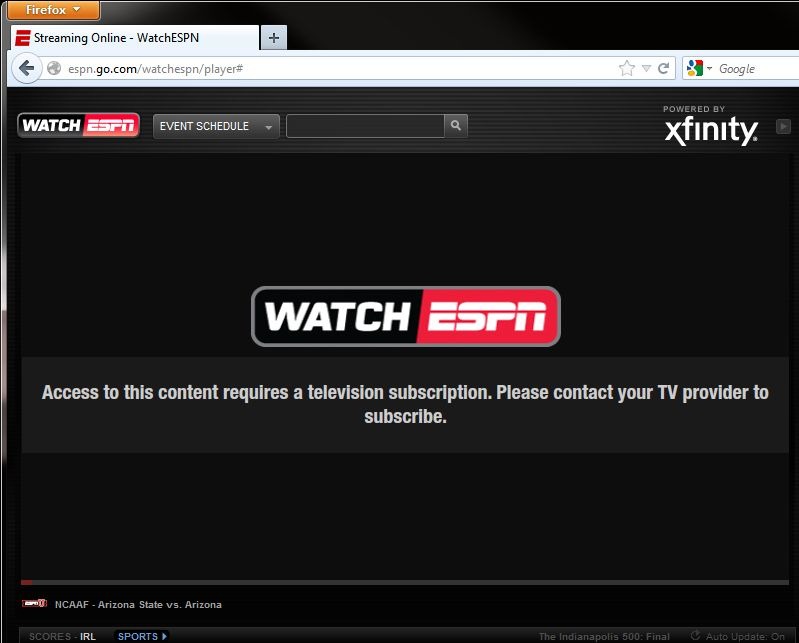
Upon attempting to demonstrate this setup to a friend of mine this morning, though, I was surprised to be presented with a new error message when attempting to view a live event on espn3.com: “Access to this content requires a television subscription. Please contact your TV provider to subscribe.”

ESPN3_Comcast

:-(

Apparently something has changed in the arrangement between ESPN and Comcast Xfinity – without any notice to me, the customer – where it’s now not just checking to see if my ISP is supported by ESPN3; it’s now additionally checking to see if I have a television subscription through that same ISP (Comcast), which I do not.  If I did have a full television subscription, I wouldn’t be trying to use espn3.com; I’d just turn on my television!

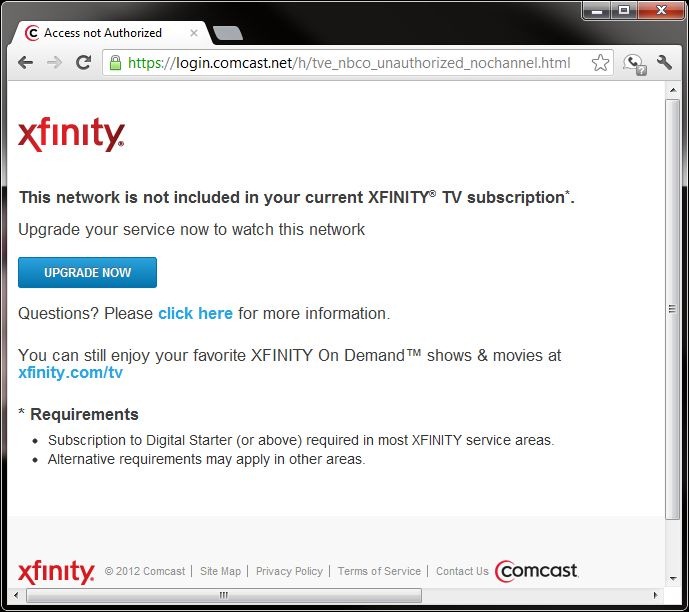
Apparently this is the new trend, as I also found just last week that my family is not permitted to access any of the live 2012 Olympics coverage currently available in the United States via nbcolympics.com, for the same reason: I only have an Internet subscription through my ISP, not a full television subscription.

NBC_Comcast

From a standpoint of trying to be fiscally responsible, it isn’t worth it to me to pay an additional $200 to be able to watch 14 Saturdays’ worth of college football from home this fall (figuring about an additional $50/month for the duration of the 4-month college football season for a television package from Comcast that includes ESPN, above and beyond the Internet service that I’m already paying for).  So it looks like I’ll be visiting friends’ homes or going to sports bars to watch any college football game that aren’t being shown on the broadcast networks (ABC, CBS, and for Notre Dame home games, NBC) this fall.  Guys, if you’re reading this, I’ll bring the beverages!

This development is pretty disappointing, to say the least.  I’d consider switching ISPs – if Comcast didn’t have a local monopoly on high-speed Internet at my location.  Hopefully, in the future, ESPN and other content providers will figure out how to profitably provide their coverage directly to consumers via the Internet, regardless of ISP. Clearly, the technology is ready and available (it worked great for me for the last couple of college football seasons prior to this year); it’s just the business side of things that needs to be worked out.

Ah, well.  Ultimately, I’ll be very happy/thankful if this situation is the biggest problem that my family encounters this fall!  #firstworldproblems

Monday, July 02, 2012

What’s That Charge?

My brother Jeremy recently launched a new website, whatsthatcharge.com, with a simple-but-useful premise: An searchable online repository, with explanations, of those cryptic merchant ID strings representing particular businesses that appear on your monthly credit card statement, like PAYBYCASH(ULTIMATEG.C) 877-703-6339 OH.

The idea behind the site is that if you Google search for one of those strings, one of the results will (hopefully) be a page on the whatsthatcharge site with an explanation of what the charge is.  The site doesn’t index or collect any personal information at all – it simply has a list of those merchant ID strings from credit card statements, along with community-sourced explanations of what business each one represents.

It’s always a good idea to review your credit card statement to make sure the charges on it are legitimate, and hopefully this site will help a lot of people with doing that -- especially for those businesses that use very cryptic credit card merchant IDs

Tuesday, June 19, 2012

Tip: Copy fully-specified file path to clipboard in Windows Explorer

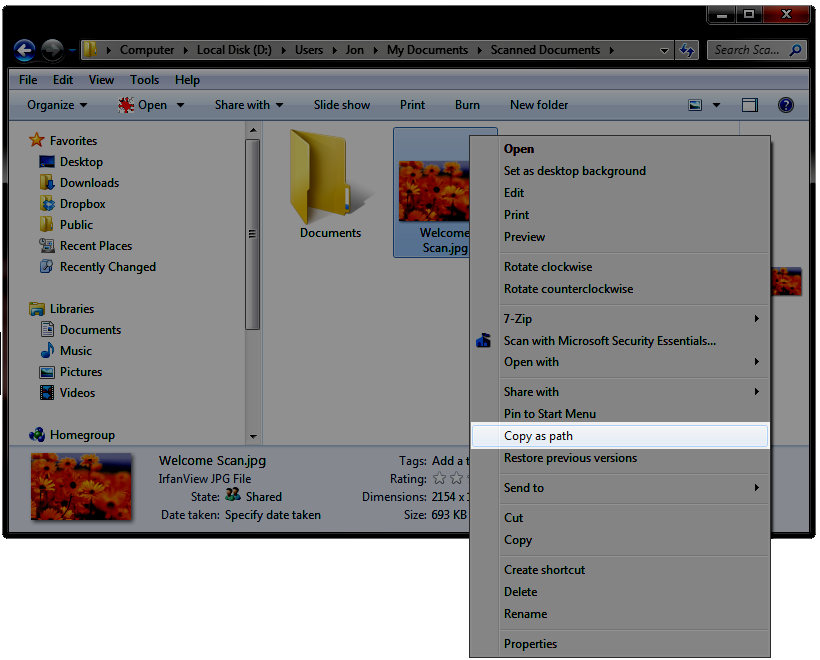
In Windows 7, if you ever have a file open in Windows Explorer that you know you’ll want to manipulate in another application, such as attaching the file to an email (or embedding an image in a blog post!), a quick way to copy the file’s fully-specified path and filename to the clipboard is to hold Shift and right-click the file, and select the Copy As Path option.

CopyAsPath

Then, you can just press Ctrl+V to paste the path into the Open File… dialog of the target application! No need to drill down through your filesystem’s folder structure to find the file.

It’s nice that this is included as native functionality in Windows 7.  In Windows XP, it was necessary to use a 3rd-party utility such as ClipPath to get this same functionality.

Wednesday, May 09, 2012

Workaround: Wireless connection fails on “Waiting for Association” on Thinkpad T520 laptop

My work PC, a Lenovo Thinkpad T520 laptop running Windows 7, normally seamlessly switches between the wired network connection when docked, and the wireless network when undocked.

A few days ago, though, the laptop (without me having made any relevant changes to the machine’s hardware/software configuration) started failing at the “Waiting for Association” step when connecting to the wireless network after undocking.

Rebooting (while undocked) would work to resolve the problem, but taking multiple minutes to reboot the machine and reopen all of the programs/documents that I had been working with prior to the reboot was obviously a significant hassle.

This morning, I found a better workaround: In Device Manager, if I disable and then re-enable the wireless network adapter (“Intel(R) Centrino(R) Advanced-N 6205”), and then re-attempt the wireless connection via the Thinkvantage Access Connections system tray icon, the wireless does connect successfully.

I’ll update this post and/or make a new post on this blog if I discover a full fix.