
Five monitors? Isn't that just a bit ridiculous?
Although it may seem like overkill, I have found that this setup is really good for productivity. I'm able to put my most-frequently-used windows each on their own monitor, which is great for avoiding time wasted switching different windows back and forth into the foreground.
It's also great for helping to minimize the situation of making a mental note of something in one window, switching to a different foreground window, and then doing something in that other window with the remembered information; I can just glance back and forth between multiple visible windows instead.
My typical window configuration with this setup:
- Second monitor from right: My primary monitor. Typically I've got a web browser here.
- Second monitor from left (portrait / vertical orientation): My code window. Typically my IDE / code editor (e.g. Visual Studio or RubyMine) goes here. Great for seeing tons of code at once! Also excellent for reviewing long documents, such as XSDs or other documentation.
- Leftmost monitor: Secondary browser or document window. I put terminal windows here. I also put my mini-mode iTunes music player in the corner.
- Rightmost monitor: Communication / chat. I typically have my team's Slack window open here.
- Top monitor: I keep a video conference window to my team's office in San Diego open here during the hours that they are working, so they can see and talk to me, and vice-versa!
What's the hardware?
Computer
MacBook Pro, 2017, 15".As far as ports go, this computer has 4 USB-C ports, plus a 3.5mm headphone jack -- and that's it! Power, video, network -- everything is done through the USB-C ports.
I have the laptop sitting on a 3M LX500 Laptop Stand to align its screen a little better vertically with the other displays. I like this stand because there's a nice empty space under the stand (which is the not the case with many stands), which is nice for a little extra physical storage space on the desk top.
USB-C to 17-port adapter
OWC 13 Port Thunderbolt 3 Dock.This is the main device that allows me to connect so many devices to my MacBook, including two of the four external monitors, as well as to provide power to the MacBook, all through a single one of the MacBook's USB-C ports.
Primary external monitor (second from right)
Dell U2312HM. 1920x1080 resolution.Connected via: MacBook USB-C port → CableCreation brand USB-C to DVI adapter → DVI cable → Monitor DVI port
Portrait mode (vertical) monitor
Dell U2412M. 1920x1200 resolution.Connected via: OWC Thunderbolt Dock → BlueRigger brand Mini Displayport to DVI cable → Monitor DVI port
The stand that comes with the monitor supports rotation, so it was very easy to get it set up in portrait mode.
The bump to 1200 resolution in the narrow dimension (instead of 1080) is nice, as it gives the monitor a little extra horizontal room in portrait mode.
Modern versions of MacOS and Windows both have excellent support for "rotating" the output for a given monitor to support portrait orientation -- I've successfully used this monitor in portrait orientation with both OS X and Windows.
Rightmost (tertiary, 4:3) monitor
Dell E196FP. 1280x1024 resolution.Connected via: OWC Thunderbolt Dock → Agatha brand USB-C to VGA Cable → Monitor VGA port
I wouldn't actually recommend this specific model of monitor anymore, because it only supports a VGA cable connection! Newer connection types such as DVI, HDMI, or DisplayPort will generally provide a sharper screen image. However, even with just the VGA connection, in practice I don't notice any bothersome blurriness on this display.
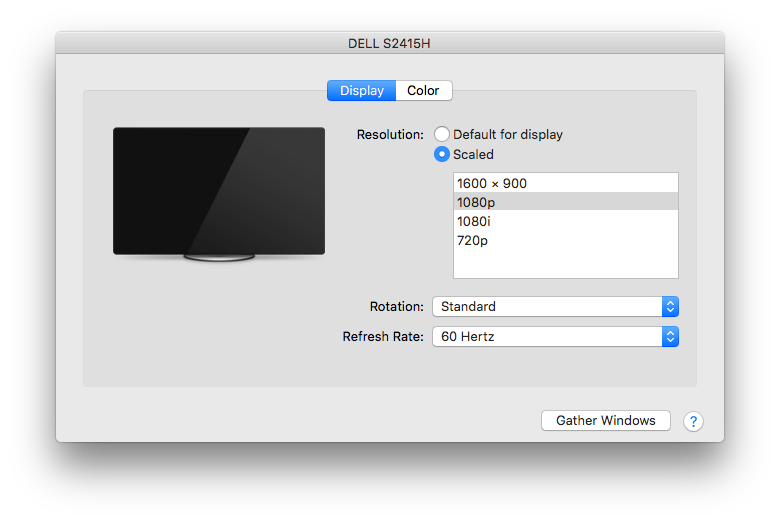
Top monitor: Dell S2415H. 1920x1080 resolution with integrated speakers.
Connected via: MacBook USB-C port → Apple brand USB-C Digital AV Multiport Adapter → HDMI cable → Monitor HDMI port
Stand: WALI brand Extra Tall Universal Single LCD Monitor Fully Adjustable Desk Mount
How painful is docking / undocking?
It's not bad at all, actually; there are only 3 USB-C cables to plug or unplug when I connect or disconnect the MacBook laptop from the setup: The one USB-C cable for the OWC Thunderbolt Dock, plus the two additional monitor adapter dongles.
It's not quite as nice of an undock experience as when I used this same set of monitors and other devices with my Lenovo Windows laptop -- which involved unplugging just a single HDMI cable from the laptop itself, and removing the laptop from the physical dock -- but it's still very acceptable!
What's with all of the Dell brand monitors?
Experience has taught me that some non-Apple monitors just don't play nice with MacBooks. The typical symptom I've seen is that I'll connect a monitor to the MacBook, and simply nothing will happen: The Mac will act as though nothing new was connected. Even the System Preferences → Displays → (hold Option button) → Detect Displays feature wouldn't help.
I don't know of any reliable way to tell whether a particular non-Apple monitor is going to work with a Mac other than actually trying it.
I've had good luck with Dell monitors working with the MacBook, though, so my current plan is to continue going with the "Dell" strategy until something changes -- that is, until I run across a Dell monitor that doesn't work with the Mac!
So why the detailed write-up?
Actually getting this to work was the end result of a lot of trial and error. I tried several times connecting these and other monitors to the MacBook in ways that resulted in things not working -- almost always manifesting itself as the MacBook acting as though one or more of the connected external monitors didn't actually exist at all, as I noted earlier.
Some specific things that I remember trying when I was getting this all set up that didn't work:
- Trying to connect more than two external monitors via the OWC Thunderbolt dock. I was only ever able to get a maximum of two external monitors working through that dock; any further number of monitors I tried just wouldn't work.
- Certain other adapter and cable brands. In particular, whereas the CableCreation brand USB-C to DVI adapter (which has only 3.5 stars on Amazon as of this writing) worked for me, a similar Belinda brand USB-C to DVI adapter did not work for me -- even though it specifically listed support for MacBook -- and I ended up returning it.
- In general, I had a lot better luck getting "non-handshaking" port types (DVI, VGA) to work than "handshaking" ports (HDMI, DisplayPort). I had several different failures trying to get the two primary Dell monitors, both of which support both DisplayPort and DVI connections, to work with the MacBook via their DisplayPort connections, before I did get them working via their DVI ports. (Both Dell monitors did work just fine with my Lenovo Windows laptop via either one of their ports.)
Wallpaper shout-outs
OS X does not currently have native support for spanning a single image across multiple monitors as the desktop wallpaper (like Windows does). The great $3 solution that I used to create the spanned image of the Enterprise-D as shown in the photo above is the Multi Monitor Wallpaper app, available on the MacOS App Store.
Multi Monitor Wallpaper shows you an outline of your combined monitor layout, and allows you to stretch / zoom / reposition your selected image across the monitors. It then automatically handles cutting up the image and setting it as the background image for each monitor. I have no affiliation with the app; I'm just a fan!
As for the excellent high-resolution image of the Enterprise-D itself, unfortunately I'm not sure whom to credit. I grabbed the image over a year ago via a Google image search, and I can't find the same image now when I search. If anyone knows where this image is from, let me know, and I'll gladly provide credit!



 Posts
Posts


1. The Legend of Zelda: Breath of the Wild (Switch) - Bravely and brilliantly replaced the longstanding Zelda trope of "do a few large dungeons, get the Master Sword, do several more large dungeons" with a huge world that's really worth exploring. Exploring the wilderness and happening upon concealed shrines managed to re-evoke the feeling of discovery that I remember from playing the original NES Zelda as a kid!
2. Super Mario Odyssey (Switch) - Full of great surprises, beautiful art, fair challenges, and so many things to do. An even better iteration on the gameplay, level design, and themes of past Mario 3D titles (Mario 64, Galaxy, 3D Land) than I might have thought possible.
3. SteamWorld Dig 2 (PC) - Rolled into this directly after finishing SteamWorld Dig 1 for the first time, which turned out to be an excellent way to approach it, with the NPC Dorothy from the first game turning PC and searching for Rusty, the first game's hero gone missing. Solid digging gameplay with lots of fun character upgrades, both major and minor.
4. Blaster Master (2017) (Switch) - Blaster Master for the NES was one of my personal nostalgic favorites. A great update while still retaining the best parts of the original. Played through it twice, getting the fun surprise at the end of the second playthrough for 100%-ing the game up through the boss.
5. Mario + Rabbids Kingdom Battle (Switch) - Great tactical strategy game, minimizing the impact of luck on the gameplay, and building on the foundation laid by X-Com by introducing lots of neat new gameplay mechanics.
6. PPKP (iOS) - A simple yet interesting 1-on-1 brawler-type fighting game perfectly tailored to being played on a mobile phone. Manages to make a deep and rewarding combat and upgrade system out of only two in-game "buttons". App Store link.
7. Mario Kart 8 Deluxe (Switch) - My favorite racing game in a long time. I actually enjoy watching others play this almost as much as I enjoy playing myself; while just observing, I notice all of the beautiful graphics happening in the environment around the race track, whereas when I'm actually playing I tend to tunnel vision in on the race itself.
8. Metroid: Samus Returns (3DS) - A very cool stride forward in 2D Metroid games with the counter-attack and 360-degree free aiming systems, even though I think I may still prefer the elegant simplicity of the original Super Metriod (SNES) gameplay. Interesting to compare and contrast this Metroid 2 (Game Boy) remake with last year's indie take on the same, AM2R.
9. Cosmic Star Heroine (PC) - A 16-bit-style turn-based RPG in a sci-fi setting with an interesting new battle system. Steam link.
10. Fire Emblem Heroes (iOS) - A nicely simplified pocket implementation of the standard Fire Emblem gameplay. I enjoyed it when it came out, although I did lose interest fairly soon after reaching the level cap of 40, despite the new content and events periodically being released.
Honorable Mentions: Puyo Puyo Tetris (Switch); Hollow Knight (PC); Snipperclips (Switch).
Previously: 2016 (GOTY: Stardew Valley). 2015 (GOTY: Super Mario Maker).